Meter offline
This page explains the known steps for bringing an offline smart-me electricity meter back online.
Good to know
How can I tell whether a meter is offline?
A smart-me meter is offline if it has not reported to the cloud for more than 15 minutes. You can check this by verifying the last connection on the meter.

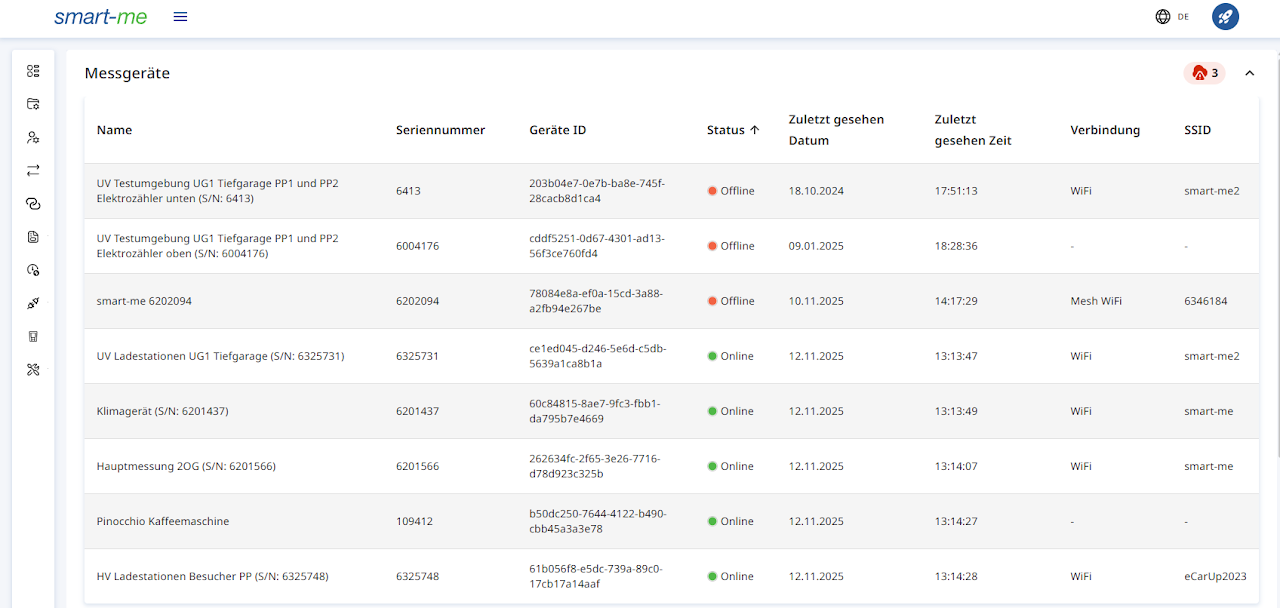
In addition, System Health (Systemgesundheit) provides an overview of all devices
Firmware version (Telstar 80A and Telstar CT)
Up to and including FW versions 1.16 and 1.17, various changes were made to the Telstar CT and Telstar 80A to improve the stability of the WiFi connection. For this reason, we always recommend briefly checking whether the latest version is installed on the meter and updating it if necessary. Firmware update
If a meter with the latest firmware version is offline even though neighbouring meters are online, please report this to us.
How do I save a new network on the smart-me device?
See "Reinstalling the meter" below
Reinstalling the meter
A reinstallation lets you save a new WiFi network on the meter. The installation must be carried out from the account in which the meter is offline. The smart-me Cloud recognises known devices and adds new data without changing the existing data.
The reinstallation follows the same procedure as described in Commissioning. In the app, select the + at the top right and reinstall the device. The new SSID and password are automatically saved on the device. Make sure you are logged in with the correct account.
Narrowing down the problem
It is important to first roughly determine where the connection problem lies. If several meters lose their connection (go offline) at almost the same time, this most likely points to problems with the access point, the router or the internet connection.
Possible problems could be:
-
The access point or router has a problem. In such cases, it can help to restart the router or the access point. After the restart, our devices should normally reconnect to the smart-me Cloud within a few minutes.
-
A new internet provider was activated or a new SSID (name of the WiFi network) was defined. In this case, you must save the new network on every smart-me device so that they can reconnect.
-
With mobile internet connections, the subscription may not have been paid. Make sure that the payments for the mobile internet are in order.
If only a single meter or a small group of meters has lost the connection, the problem is usually more likely to lie with the affected smart-me meter.
Bringing a meter back online
The following guide proposes a standard procedure for bringing a meter back online.
Please note the following prerequisites:
-
This procedure assumes that the internet is configured correctly and meets all requirements.
-
Make sure that another meter in the same account, which according to the planning should be connected to the same router or access point, is online. This ensures that neither the internet hardware nor its prerequisites are causing the problem.
Telstar 80A and Telstar CT
-
Serial number starts with 63*: Telstar 80A
-
Serial number starts with 62*: Telstar CT
1. Restarting the meter
This is for information only on how it is done; further below you may be asked to restart the meter to bring it back online.
Forcing a restart:
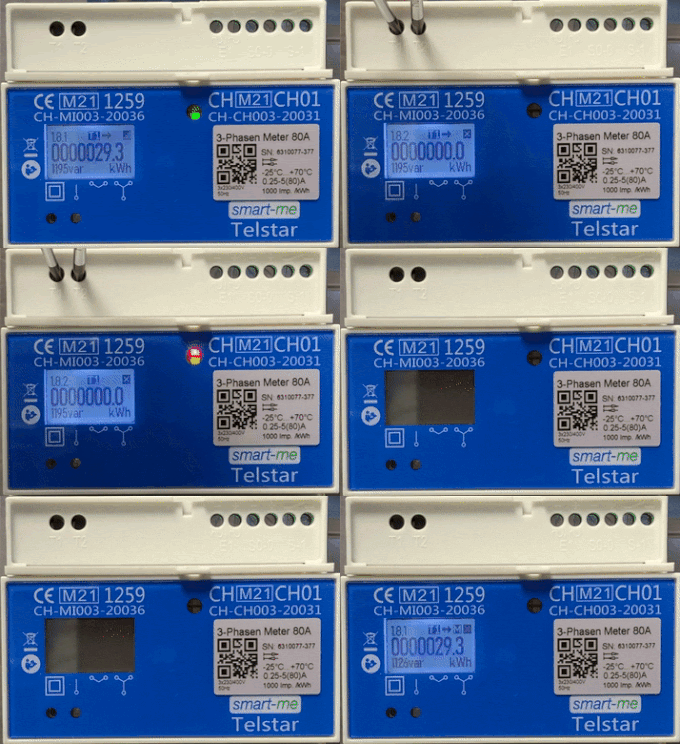
- Press T1 and T2 for 10 seconds. The display briefly goes off during the restart.
How do I recognise the restart:
- The meter briefly goes dark and nothing is shown on the display.
Behaviour when the meter comes back online:
-
At the top right of the screen, the reception signal alternates between X and reception immediately after the restart.
-
The meter is online when, after approx. 1 minute, the reception signal at the top right of the display is permanently on and black.
-
Briefly check whether the meter is online in the cloud.
-
Check whether a firmware update is available. If so, update all meters.
Behaviour when the meter does not come online:
-
At the top right of the screen, the reception signal alternates between X and reception for more than 2 minutes after the restart without coming online.
-
If this does not help, call support.
2. Check on arrival
The following points can be checked on arrival. If something has already been changed on the meter, it is important that no further changes are made to the meter for at least 5 minutes. You can also ask the customer on site for a 30-second video of the meter to better assess the situation.
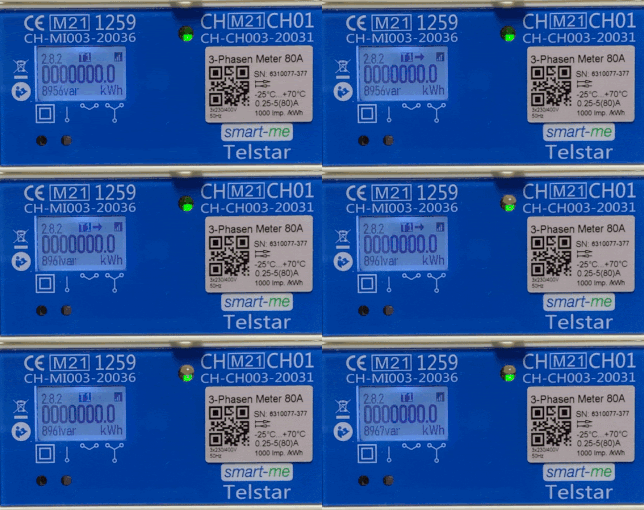
3. Meter alternates between X and reception symbol:
-
Check whether pressing the T1 button for 10 seconds makes the reception symbol on the display alternate between light and dark. If this is not the case, please call support.
-
Solution 1: Press T1 and T2 simultaneously: The meter should briefly go dark. Wait 1 minute and check whether the meter is back online.
-
Solution 2: Reinstall the meter. Please select the target account and under no circumstances delete the meter in the account.
-
Solution 3: Call support
4. Display is dark:
-
Solution 1: Check that at least phase 1 is connected
-
Solution 2: Check that the neutral conductor is connected correctly.
-
Solution 3: If it is possible without much effort, remove the fuse and reinsert it.
-
Solution 4: If the display is still permanently black after solutions 1 and 2, the meter is defective. In this case, an RMA application form can be filled out (error description: Display Dunkel Code:dd).
Display repeatedly goes dark:
-
Description of the problem: The meter shows something. After a moment, it shows nothing for a few seconds. Then it comes back, etc...
-
Solution 1: Check whether the neutral conductor is connected and wired correctly.
-
Solution 2: Call support
Meter creates a local WiFi network for more than 5 minutes:
-
How do I recognise this state: The reception signal at the top right of the display alternates between light and dark reception.
-
In this case, this indicates a stuck T1 button.
-
Solution 1: Try to free the T1 button.
-
Solution 2: Fill out an RMA application form (error description: Taste T1 klemmt Code:tk).
Meter permanently shows an X at the top right:
-
Solution 1: Check whether the display repeatedly goes dark. If this is the case, please read the solution in the section "Display repeatedly goes dark" above.
-
Solution 2: Restart the meter (see description above)
-
Solution 3: If it is possible without much effort, remove the fuse and reinsert it.
-
Solution 4: If an X is still permanently shown after solutions 1 and 2, the meter is defective. In this case, an RMA application form can be filled out (error description: X wird immer angezeigt Code:xx).
Meter cannot connect to the WiFi:
-
The reception signal at the top right of the display alternates between reception and X.
-
Solution 1: Restart the meter (see description above)
-
Solution 2: This only needs to be applied if no other meter nearby is online. Use a smartphone to create a hotspot with the same SSID and password as the existing WiFi. Then restart the meter again and check whether it connects via the smartphone's hotspot. If the meter connects via the hotspot, this indicates a problem with the WiFi router or access point. Note that most smartphones allow a maximum of five devices to connect via the hotspot.
-
Solution 3: If it is possible without much effort, remove the fuse and reinsert it.
-
Solution 4: Call support
3-Phase 80A (old version)
- Serial number starts with 60*: 3-Phase 80A
1. Restarting the meter
This is for information only on how it is done. Further below you may be asked to restart the meter to bring it back online.
Forcing a restart:
- Press T1 and T2 for 10 seconds. The display shows 888888 for 1-2 seconds.
How do I recognise the restart?
- The meter display shows 888888 for 1-2 seconds.
Behaviour when the meter comes back online:
-
At the top left of the screen, the WiFi signal alternates between WiFi with and without an exclamation mark immediately after the restart.
-
The meter is online when, after approx. 1 minute, the WiFi signal at the top left of the display is permanently shown without an exclamation mark.
-
Briefly check whether the meter is online in the cloud.
-
Check whether a firmware update is available. If so, update all meters.
Behaviour when the meter does not come online:
-
At the top left of the screen, the WiFi signal alternates between WiFi with and without an exclamation mark for more than 2 minutes after the restart without coming online.
-
If this does not help, call support.
Check on arrival
The following points can be checked on arrival. If something has already been changed on the meter, it is important that no further changes are made to the meter for at least 5 minutes. You can also ask the customer on site for a 30-second video of the meter to better assess the situation.
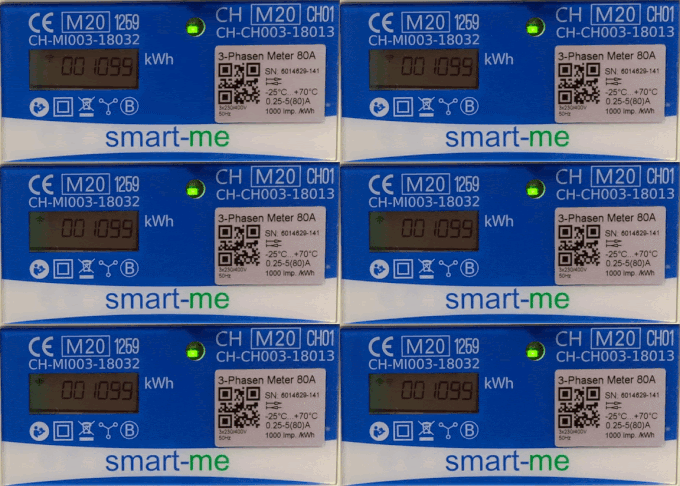
Meter is dark:
-
Solution 1: Check that at least phase 1 and the neutral conductor are connected correctly.
-
Solution 2: If it is possible without much effort, remove the fuse and reinsert it.
-
Solution 3: If the display is still permanently black after solutions 1 and 2, the meter is defective.
888888 is shown on the display:
-
Solution 1: Restart the meter
-
Solution 2: If it is possible without much effort, remove the fuse and reinsert it.
-
Solution 3: If 888888 is still shown after solutions 1 and 2, the meter is defective.
Meter creates a local WiFi network for more than 5 minutes:
-
How do I recognise this state: The WiFi signal at the top left of the display is shown alternately with and without an exclamation mark.
-
In this case, this indicates a stuck T1 button.
-
Solution 1: Try to free the T1 button
-
Solution 2: If a local WiFi network is still created after solution 1, the meter is defective.
Meter cannot connect to the WiFi:
-
How do I recognise this state: The WiFi signal at the top left of the display is shown with an exclamation mark.
-
Solution 1: Restart the meter (see description above)
-
Solution 2: Use a smartphone to create a hotspot with the same SSID and password as the existing WiFi. Then restart the meter again and check whether it connects via the smartphone's hotspot. If the meter connects via the hotspot, this indicates a problem with the WiFi router or access point. Note that most smartphones allow a maximum of five devices to connect via the hotspot.
-
Solution 3: If it is possible without much effort, remove the fuse and reinsert it.
-
Solution 4: Call support
Bauer Station
-
The symbol in the smart-me portal is a petrol station symbol and not a lightning bolt
-
Serial number starts with 60*: 3-Phase Meter 80A (old)
-
Serial number starts with 62*: Telstar 80A (new)
Check on arrival
-
- Call support. Guide in progress.
Connection quality
Pico WiFi reception quality
From FW version 0.0.18, the WiFi reception quality is shown in the smart-me portal. Firmware update
This information can be retrieved by all accounts via the API with the command "GET /api/AdditionalDeviceInformation/{id}".
-
-
Pico: WiFi (0 = unknown, -1 to -49 = excellent, -50 to -59 = very good, -60 to -69 = good, -70 to -99= low) (-99 poor, -1 good)
-
Pico: Mobile (0 = unknown, 1 to -74 = excellent, -75 to -84 = good, -85 to -94 = low) (-99 poor, -1 good)
-
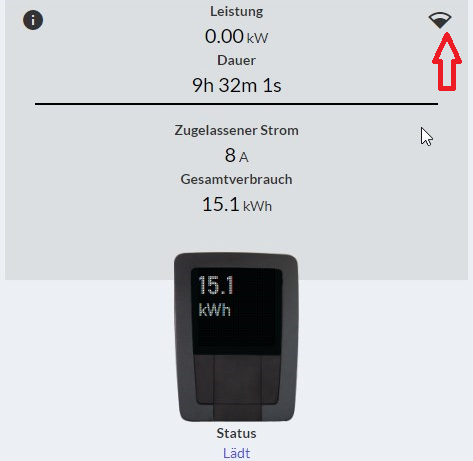
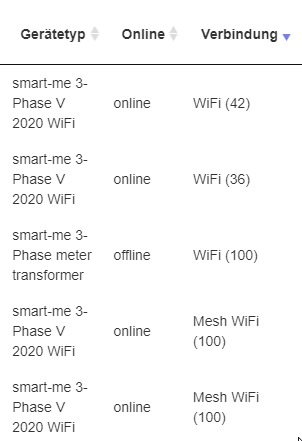
Gold partners can check the connection type and quality of Telstar and Pico online.
-
Log in to the gold partner account
-
Configuration (Konfiguration)
-
Partner (Partner)
-
Device management (Geräteverwaltung) (may take a while with many devices)
-
A new column with the connection type is displayed
-
The quality is shown in brackets.
-
Telstar: WiFi <= 40 can lead to unstable connections (0 poor / 100 good)
-
Pico: WiFi (0 = unknown, -1 to -49 = excellent, -50 to -59 = very good, -60 to -69 = good, -70 to -99= low) (-99 poor, -1 good)
-
Pico: Mobile (0 = unknown, 1 to -74 = excellent, -75 to -84 = good, -85 to -94 = low) (-99 poor, -1 good)
-
This information can be retrieved by all accounts via the API with the command "GET /api/AdditionalDeviceInformation/{id}".