M-Bus gateway failures
This page covers the most common errors relating to the M-Bus gateway
Gateway does not find all meters
Many M-Bus meters draw their power from the gateway. Our gateway supports 50 standard loads.
-
Run the search 1-2 more times. A meter does not always respond during the first search run.
-
Check that the total of the loads does not exceed 50.
-
Cables that are too long or too thin lead to losses on the lines.
-
Not every M-Bus meter is compatible with our gateway. You can find the list of compatible meters on the M-Bus gateway product page
Gateway finds more meters than were installed (during commissioning)
Reason: numbering of combination meters
The M-Bus gateway only detects one meter at a time, using the secondary address, which is usually also listed on the acceptance report.
The combination meters are then shown separately on the portal. For this use case, smart-me uses its own numbering logic.
All meters that are not relevant for billing can be deactivated to save license costs. Deleting them does not help, because the meter keeps reappearing.
If a meter contains more than 1 meter, they are numbered as follows:
-
Main meter = secondary address from the list of the M-Bus gateway (e.g. 71440145)
-
Additional meters = secondary address of the main meter, with the first digit removed (e.g. 7) and a number counted up at the end (e.g. 14401451,14401452).
-
Sub-meters = these contain the last four digits of the main meter (e.g. 0145) and a four-digit sequence number at the end (e.g. 01450001)


Gateway finds more meters than were installed (during operation)
An unstable connection can lead to the serial number being transmitted incorrectly.
-
-
Solution 1: These meters can be deactivated, which prevents them from using a license.
-
Solution 2: Prevent the detection of new devices
-
How to prevent the detection of new devices
-
Select the M-Bus gateway.
-
Select the M-Bus gateway gear icon (top right). Note: Do not select the upper gear icon, which is used to configure the meters, but the lower one.
-
Edit (Bearbeiten)
-
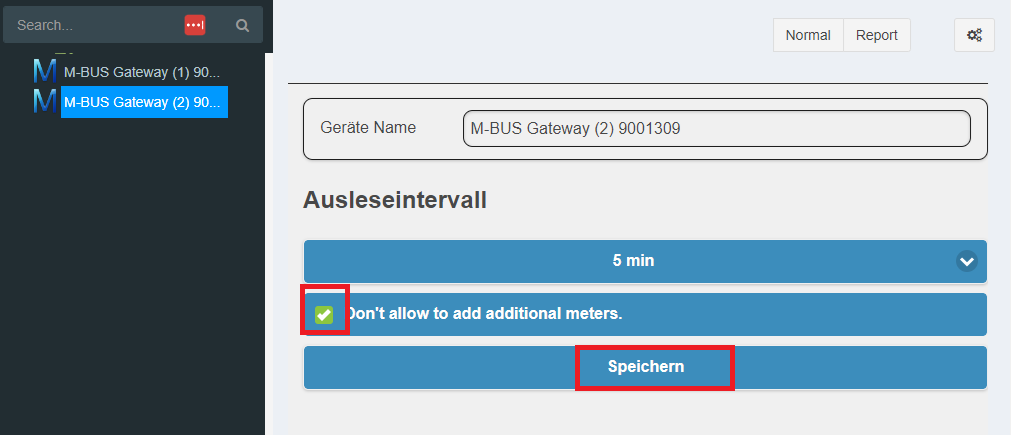
Tick "Don't allow to add additional meters".
-
Save (Speichern)
What does this option do?
- Enabling the option "Don't allow to add additional meters" prevents devices that do not yet exist in the cloud from being saved.
What should you keep in mind?
- When adding new devices, this option must be disabled again before the search.
When is this option recommended?
-
When M-Bus devices that do not actually exist keep appearing in the portal.
-
As a preventive measure :-)
In which cases can this happen?
- When errors occur in the data transmission. This happens more often when the M-Bus cable is too long and the quality of the data transmission drops as a result, or when the cable is poorly shielded or exposed to external interference.
Technical explanation
- The standardized M-Bus protocol has only 1 byte for the checksum. The checksum is intended to detect certain errors in data transmission. Unfortunately, 1 byte is not much, and it can repeatedly happen that a faulty data packet is considered correct and valid. In some installations using M-Bus gateways, this repeatedly causes corrupt packets to be classified as correct and valid, which are then detected and added as a new M-Bus device in our cloud. The account then drops from Professional to Basic, because license coverage is no longer ensured.
M-Bus meter is offline
-
Meters drop out irregularly, and it is not always the same meters.
-
The meters need about 10 seconds to respond. If the readout interval is set too short, they have no chance to do so.
- Solution: The readout interval can be increased on the M-Bus gateway. 10 seconds per device is recommended.
-
-
Meters always lose the connection at the same time of day (hour and minute).
-
In this case, the meters may be battery-powered and only allow a certain number of readouts per day to save the battery.
- Solution: Here the readout interval can be increased to 6 or 12 hours.
-
-
Meters drop out irregularly, and it is mostly the same meters.
-
External interference on the lines, especially with longer lines, can lead to faulty transmissions.
- Solution: Keep the meter wiring short.
-
Meter values do not match the physical meter
-
Check the meter configuration.
-
Check the wiring between the meter and the gateway.
-
Not every M-Bus meter is compatible with our gateway. You can find the list of compatible meters on the M-Bus gateway product page
Replacing the M-Bus gateway
-
Install the new M-Bus gateway and connect the wiring to the new gateway.
-
Commission the M-Bus.
-
Set the readout interval on the portal.
-
Search for devices.
-
Check whether all M-Bus meters have delivered current values.
Note: Nothing needs to be changed for the existing M-Bus meters in the smart-me configuration or in Billing.