Formatting CSV numbers correctly
General
You open a CSV file in Excel and the numbers... look broken.
The problem is almost always the global confusion over separators (the battle between 1.000,50, 1,000.50, 1'000.50 and 1000.50). Unfortunately, Excel is somewhat stubborn here and expects a format on import that exactly matches your regional system settings.
Since our smart-me system cannot yet export the perfect CSV format for every single region, a manual adjustment in Excel is sometimes necessary.
Below you will find two simple solutions to make sure Excel displays your data correctly.
Editing the CSV with Find/Replace
-
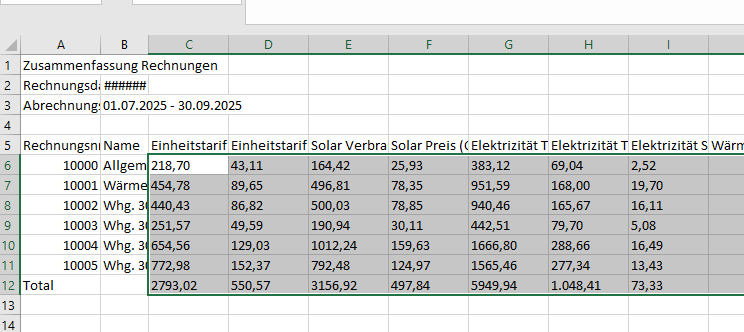
Select all values that are formatted incorrectly.
-
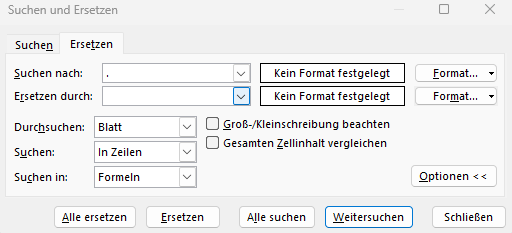
Press Ctrl+H
Editing the CSV with Find/Replace
-
Press Ctrl+H
-
Find "." (period)
-
Replace with "" (nothing)
-
Replace All
-
Find "," (comma)
-
Replace with "." (period)
-
Replace All
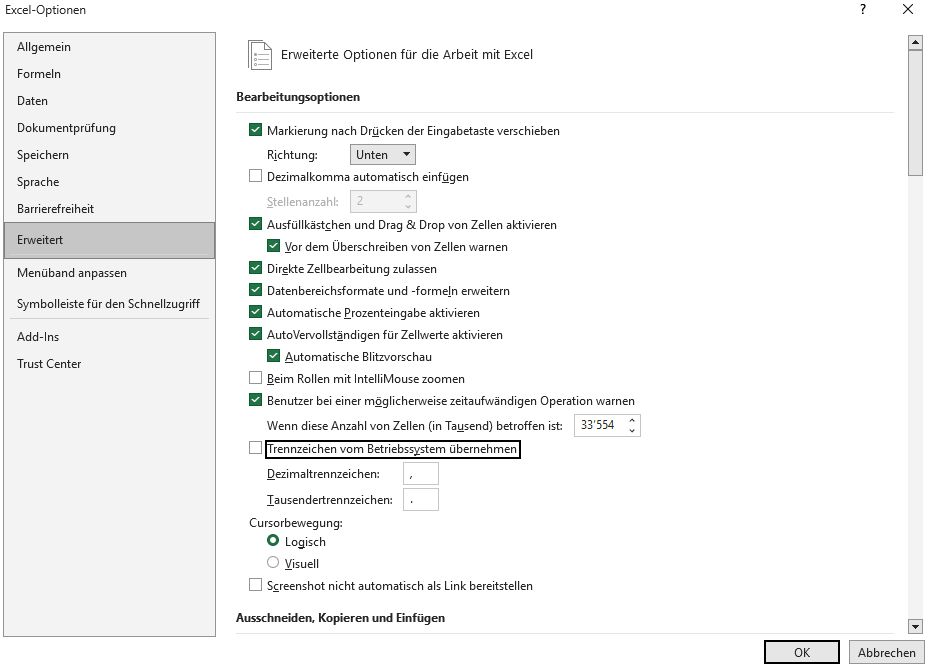
Changing the number separators in Excel.
-
File
-
Excel Options
-
Advanced
-
Uncheck Use system separators
-
Decimal separator , (comma)
-
Thousands separator . (period)
-