Auto Export errors
This section describes known error messages related to Auto Export and possible solutions.
General
The configuration of Auto Export is described here: Auto Export
If the Auto Export was successful, you can check the status for each metering point under Configuration (Konfiguration) --> Auto Export (Auto-Export) --> Assignment (Zuordnung) (on the right-hand side).
To refresh the display of the export status, click the Auto Export menu on the left-hand side.
Our system checks every 10 minutes whether a job is overdue.
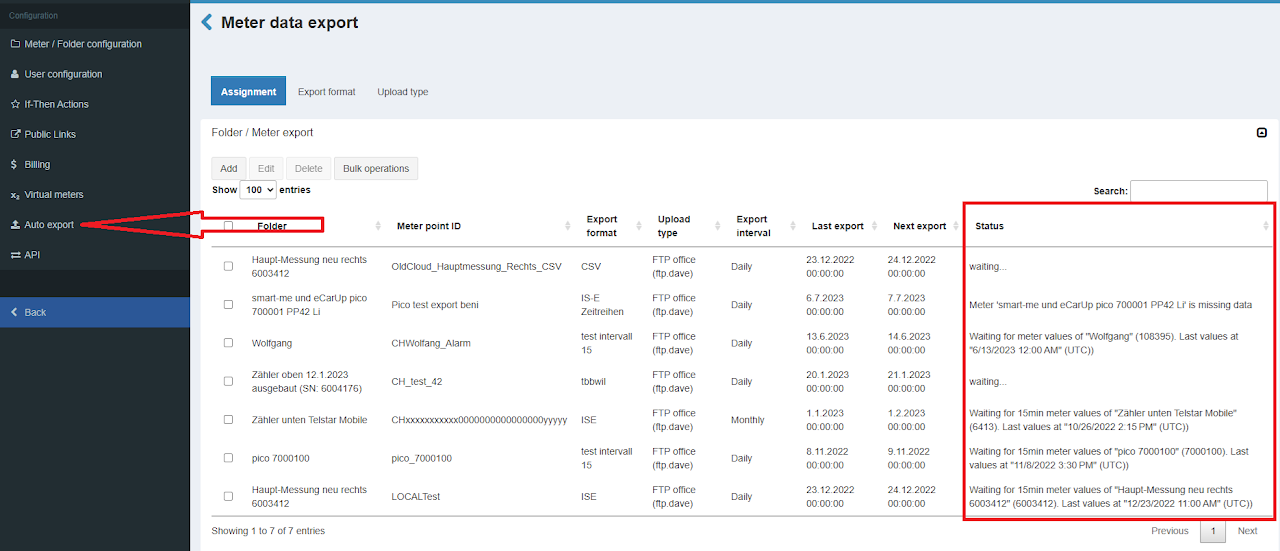
Status
The status always indicates the state of the export
- OK: Last export successful
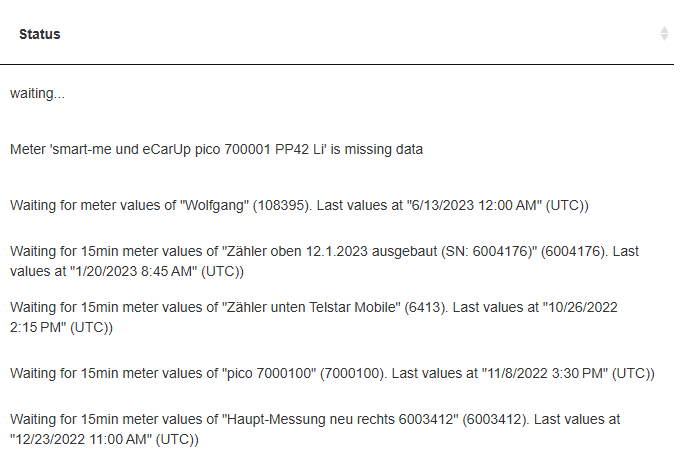
waiting...
Problem 1: Date is in the future
- The date is in the future
Solution:
- Wait until the configured date has fully passed.
Problem 2: Waiting
- The system has not yet performed a successful export since the assignment was created / last changed.
Solution:
- Wait 15 minutes. After that, either OK or an error message is displayed.
Meter 'xxx' is missing data
Problem:
- There is no data for this day.
Solution:
-
In the menu Interfaces (Schnittstellen) / Auto Export (Automatischer Export)
-
Note the date of the last export.
-
In the menu Dashboard
-
Select the station
-
Report
-
Set Date from (Datum von) to the "Last export (Letzter Export)" date from Auto Export
-
Set Date to (Datum bis) to the "Last export (Letzter Export)" date from Auto Export
-
Note the oldest date under Electricity time span (Elektrizität Zeitspanne).
-
In the menu Interfaces (Schnittstellen) / Auto Export (Automatischer Export)
-
Select the station
-
Edit (Editieren)
-
Set Last export (Letzter Export) to "oldest date under Electricity time span" +1.
-
It is important to set the date + 1, as we can only export full days.
-
Wait up to 45 minutes until the export updates the status.
Waiting for meter values of ".... Last values at "...." (UTC))
Problem 1: Meter offline
- The metering point is offline and no longer delivers data.
Solution
-
The metering point must be brought back online.
-
The Auto Export will then restart automatically.
Problem 2: Data for an entire day is missing
- The metering point does not have all data for the period between the last export and the next export. For example, because the metering point was installed on 2.3.2024 at 12h37, no export can be performed for 2.3.2024, as this day is incomplete.
Solution
-
(optional) Manual reading in the downstream system, e.g. EDM, so that the day is fully recorded. (The reading can be taken, for example, with a report in the main overview of smart-me).
-
Edit the metering point and set Last export (Letzter Export) to the next date.
FTPs Upload Error: The remote server returned an error: 150 Opening data channel for file upload to server of ....
Problem:
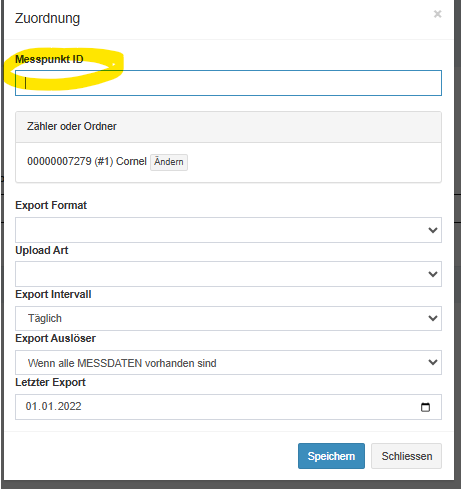
- The metering point ID has one or more leading spaces on the left
Solution:
- Delete the spaces and save.
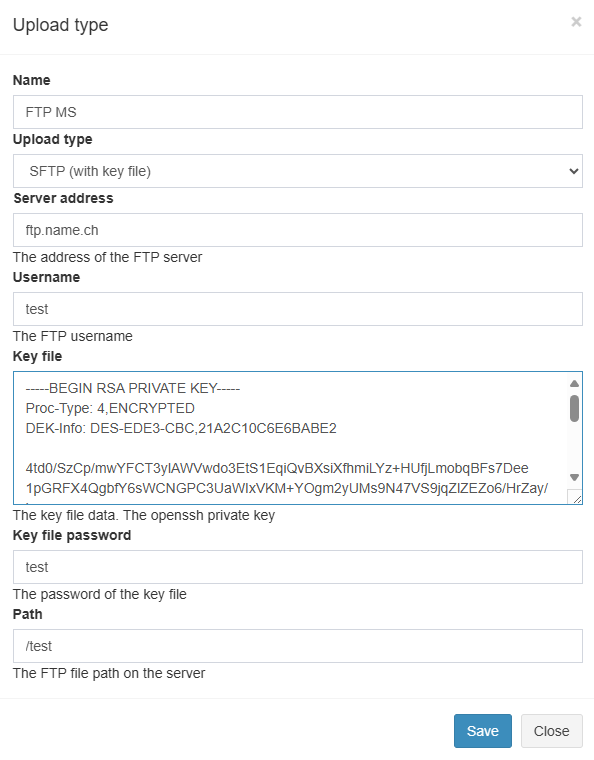
SFTP upload: issue with key file: Invalide private key file.
Problem 1: Key file has not been entered.
- Key file is not correct
Solution 1
-
Make sure that the key file is configured correctly according to Auto Export --> Upload type (Upload Art).
-
Check that the generated key file begins as follows:
-----BEGIN RSA PRIVATE KEY----- DEK-Info: DES-EDE3-CBC Proc-Type: 4,ENCRYPTED,...
FTP upload Error: The remote server returned an error 550
Problem: Smart-me does not have permission to write to the specified path.
Solution: Grant permissions.
Problem 2: Special case when using MOVEit (as of 8.7.2024: #32171)
-
Use the "key file" created with the two openssl commands. Auto Export --> Upload type (Upload Art)
-
Establish a first connection, which fails (returns an invalid certificate error).
-
In my "MOVEit" software, I receive a message (green in the image). I then have to reactivate the user (in blue) and accept the certificate (in red).
-
Remove the "/" from the path so that the files can be stored in the "Export" folder. (Wrong: "/Export", Correct: "Export)
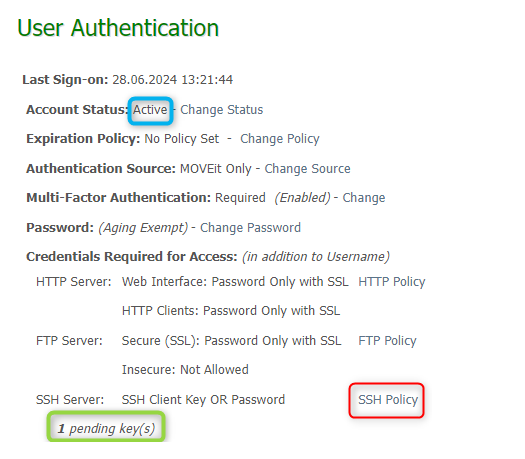
Image from MOVEit

Image of the Auto Export assignment