Immotop2 VHKA Configuration
Supported VHKA file formats Immotop2
- XML file format (DTA-VHKA standard) Queries per cost center: - Meter readings in m3 or kWh per usage unit - Per mille values per usage unit - Price per usage unit
Key notes on billing with Immotop2 and smart-me
-
The billing and allocation of costs according to VEWA takes place in the smart.me system.
-
Every billing unit in Immotop2 that is to be queried must exist congruently in Smart-me
-
For the billing to be correct, the tenancies and vacancies must be recorded in all units for every billing period in Immotop2!
-
Immotop2 only supports one billing period per ancillary cost group, so electricity must be billed in the same period as all other ancillary costs.
-
The tenant list from Immotop2 is automatically synchronized with smart-me.
Configuration notes on the Immotop2 side
For Immotop2 and smart-me to be able to communicate with each other, the recorded ancillary costs, cost centers and ancillary cost groups must match.
Creating the required allocation keys in Immotop2
So that the cost centers can be transmitted correctly, you must first make sure that the necessary keys are available on the client.
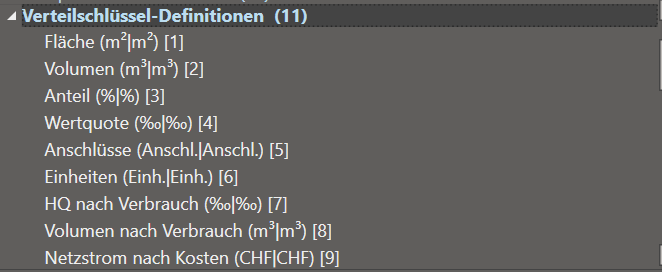
Under the "Basisdaten" tab, the corresponding allocation keys can be created under Verteilschlüssel-Definitionen.
If the costs are to be managed in the Immotop2 software, the per mille allocation key is a good choice.
For locally produced electricity, the CHF allocation key is primarily suitable. for all cases.
Allocation keys that are generally suitable:
-
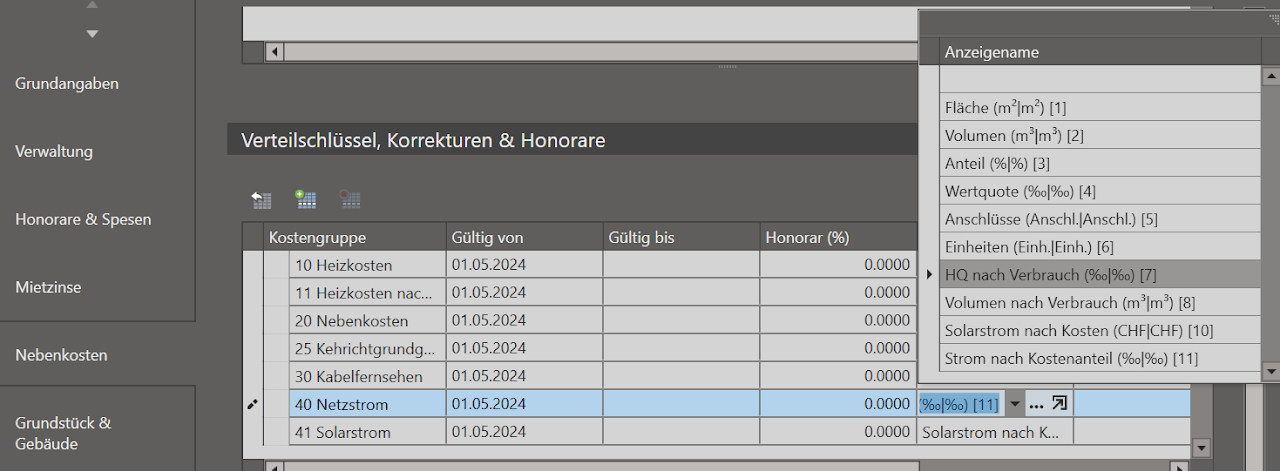
Cost center grid electricity: grid electricity by cost in CHF
-
Cost center solar electricity: solar electricity by cost in CHF
-
Cost center heat and domestic hot water combined: heating share by consumption in per mille
-
Cost center heat: heating by consumption in per mille
-
Cost center domestic hot water: cost center domestic hot water by consumption in per mille

1. Create LG-Gruppe ancillary costs
The prerequisite for billing is an existing client with created properties.
Under the "LG-Gruppe-NK" section of each property or property group, a new LG-Gruppe-NK can be created. In it, the billing periods of the ancillary costs and the properties to which this group applies are defined.
- Several properties can share the same LG-Gruppe-NK, but then all costs of the properties must also converge on one cost account. Properties are primarily managed together if they share the heating.
2. Cost groups (cost centers)
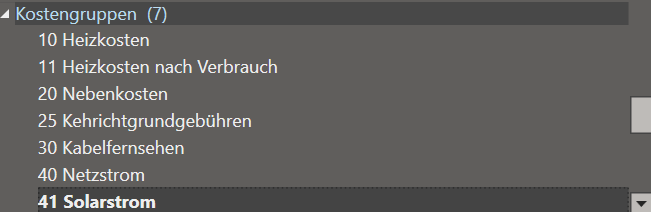
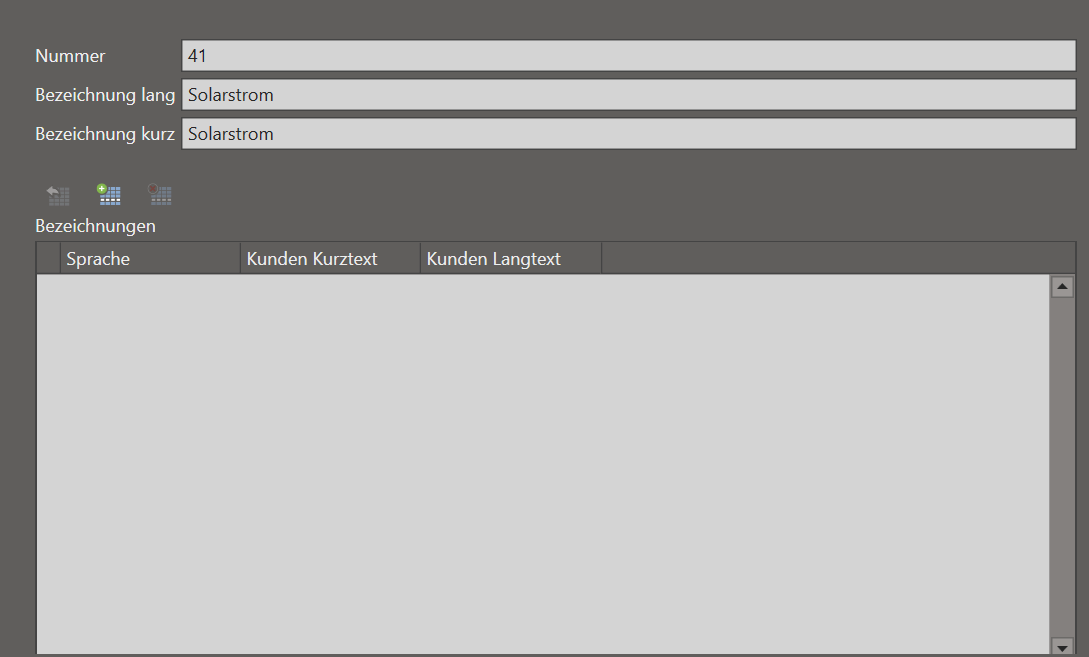
The cost groups can be created in the "Kostengruppen" section
A cost group corresponds to a grouping of several cost accounts that are to be split together using a common allocation key.
Examples of cost groups:
-
Cost group grid electricity
-
Cost group local electricity
-
Cost group heating costs (heat and domestic hot water combined)
-
Cost group cold water
Example of the cost group for mutually supporting heat and domestic hot water generation
Heat pump with domestic hot water generation and electric heating element (coupled)
Energy used: electrical energy for both Function: heating water flows through the boiler for heat storage
Cost group to be created:
Heating and domestic hot water costs with allocation key heat share type 09 by per mille or price
Example of non-supporting heat and domestic hot water generation systems
Oil heating with separate electric hot water boiler
Energy used: electrical energy for the boiler, oil for heating Function: no preheating of the domestic hot water by the heating
Cost groups to be created:
Heating costs with allocation key space heating type 01 by per mille or price
Domestic hot water costs with allocation key domestic hot water separate type 02 by per mille or price
3. Cost account to cost group assignment
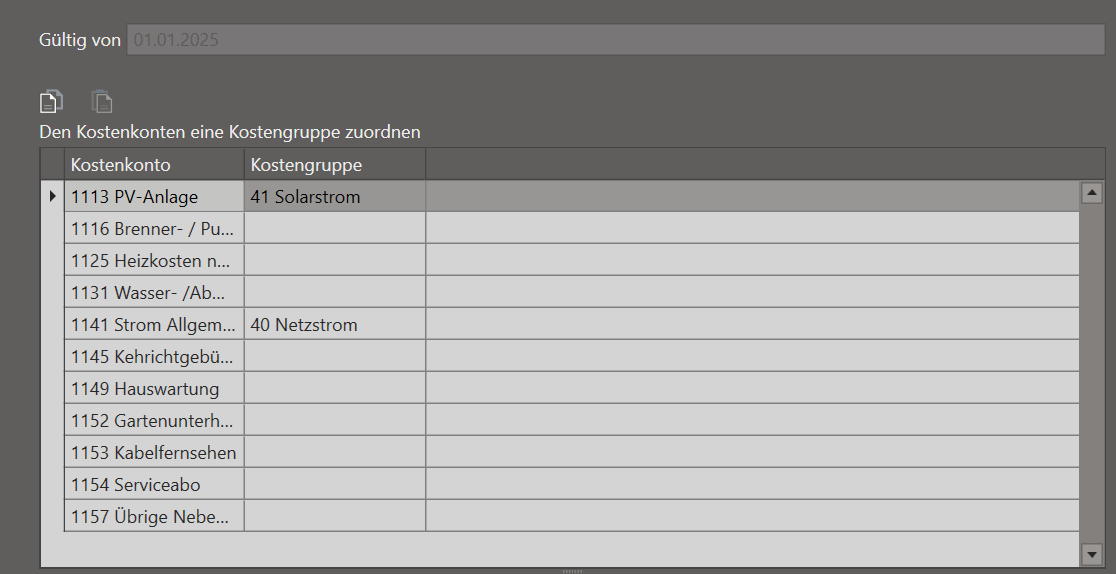
In the "Kostenkonten- Kostengruppen-Zuordnung" section, all relevant cost accounts can now be assigned to the cost groups.
As an example for the heating and domestic hot water costs, the following accounts would now be linked to the cost group:
-
Heating oil
-
Heating operation
-
Burner service
-
Boiler descaling
-
Boiler electricity
-
...
4. Ancillary costs of the property
On the property, the LG-Gruppe-NK can be added under the "Nebenkosten" tab.
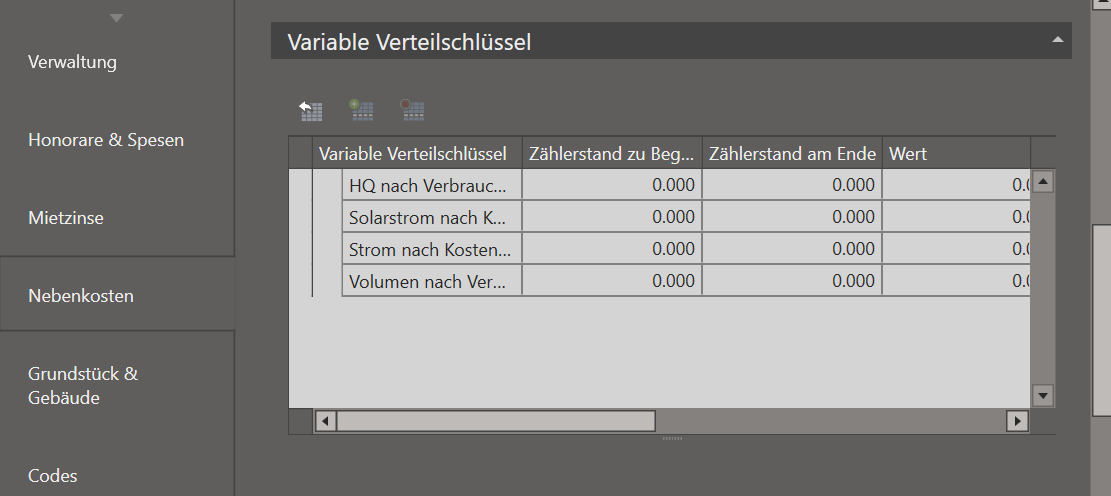
This is where fixed or variable allocation keys for the billing are defined.
Allocation keys The available allocation keys depend on the allocation keys activated under Mandant --> Nebenkosten. If the relevant allocation keys are not available, additional allocation keys can be defined under "Basisdaten" --> "Verteilschlüsseldefinitionen".
Examples:
Name: Heating share by consumption Unit: per mille Type: variable Meter reading company rate: Total heat (heating and domestic hot water together, 09)
Name: Grid electricity by cost Unit: CHF Type: variable Meter reading company rate: Electricity (06)
Name: Solar electricity by cost Unit: CHF Type: variable Meter reading company rate: Electricity (06)
- Activate allocation keys on the property
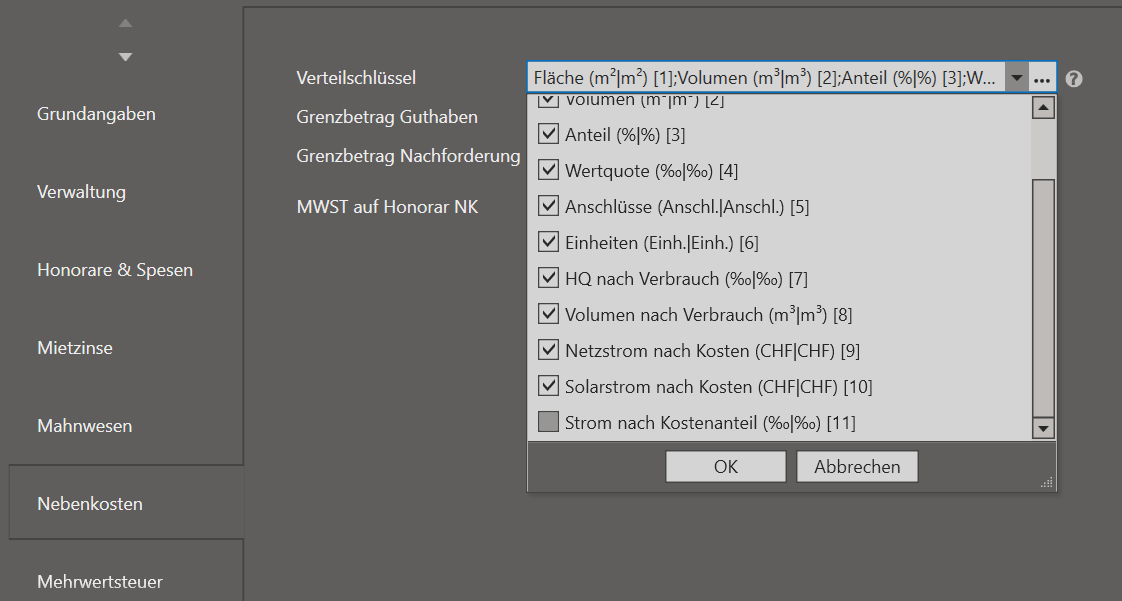
2. Check activated allocation keys
3. Assign allocation keys to the cost group
6. Export the DTA-VHKA file from Immotop2
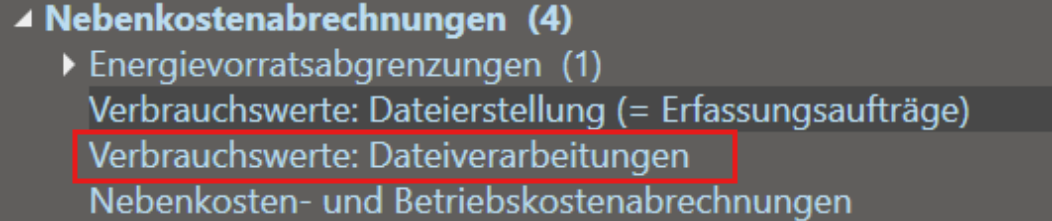
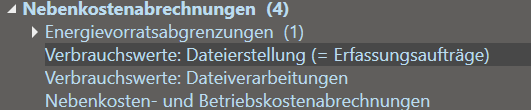
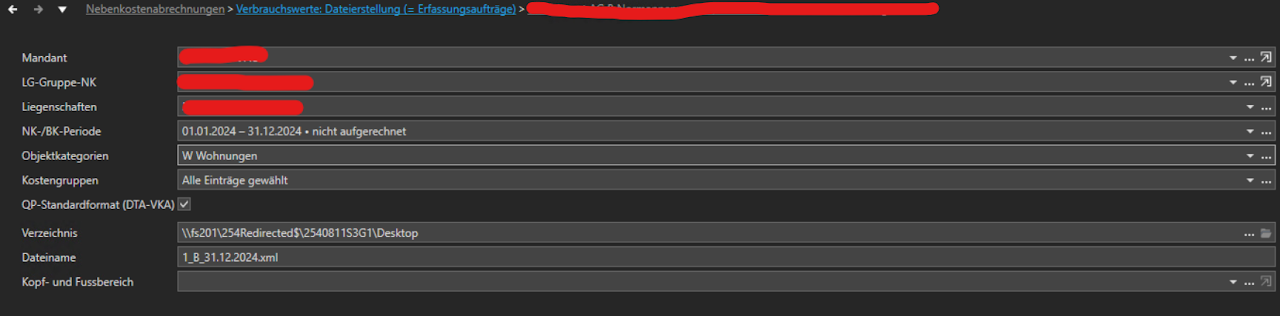
Once the configuration is complete, the exchange file can be created under Verarbeitung.
In the configuration, you can define exactly which objects in the property are to be queried.
Normally, you can simply query all of them.
Important: QP-Standardformat (DTA-VKA) must be activated.

Making cost center postings in Immotop2
If preceding postings to the cost centers are required in Immotop2, they can be taken from the summary CSV of each created invoice.
This is usually the case for solar electricity, grid electricity and the electricity costs of the heat pump / heating / boiler.
When allocating solar electricity, this will be necessary more often, as the source of this information lies in the smart-me system.
For the other cost centers, external invoices are usually available that can be posted.
-
Open smart-me Billing via the Billing (Rechnungsstellung) tab
-
Select the property
-
Select the billing period and create an invoice
-
Once the invoice for the matching period has been created, open the summary CSV (Zusammenfassung CSV)

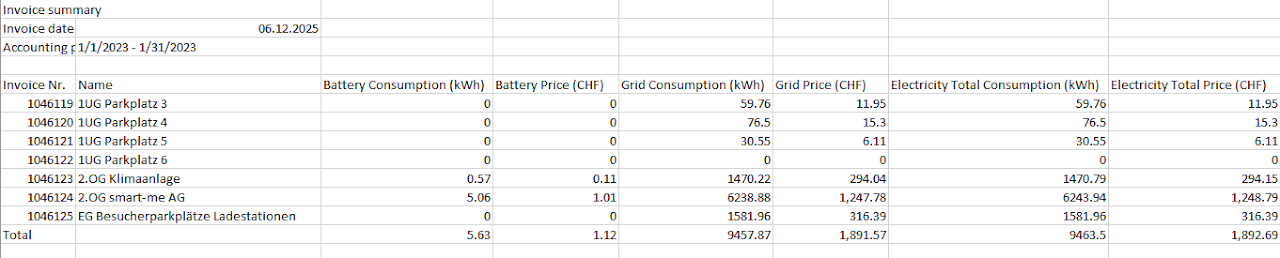
It contains the kWh and m3 sold and the price per tariff, per billing unit and in total.
With this total value of the respective tariff, a posting can be made in Immotop2 and then distributed accordingly by per mille with the DTA-VHKA file.
Defining the external keys using the request file
1. Link the DTA-VHKA file with external keys
-
Open the file in an editor
-
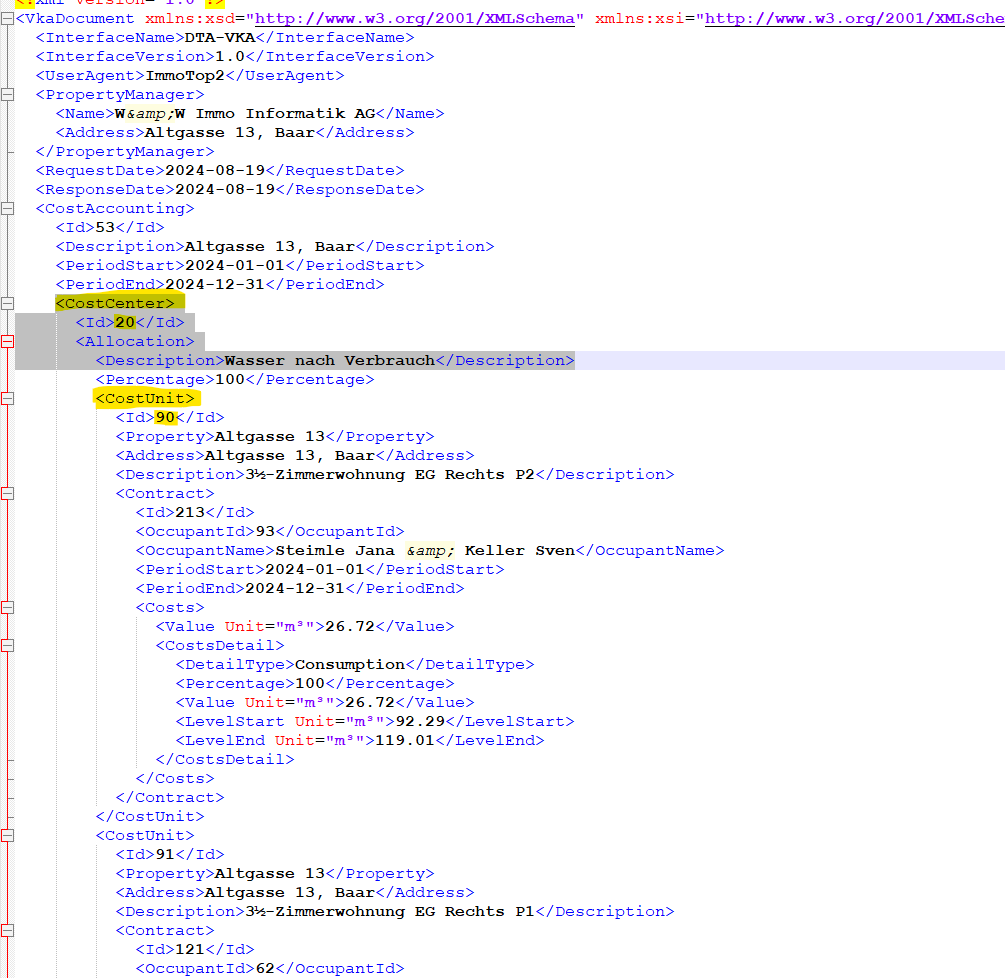
Identify the cost centers For each <Costcenter>, an energy tariff must exist in smart-me
E.g.: Cold water tariff: ID= 20 Electricity peak tariff: ID = 23 Electricity off-peak tariff: ID=24 . Tariffs can be combined automatically by entering the same ID for several tariffs.
-
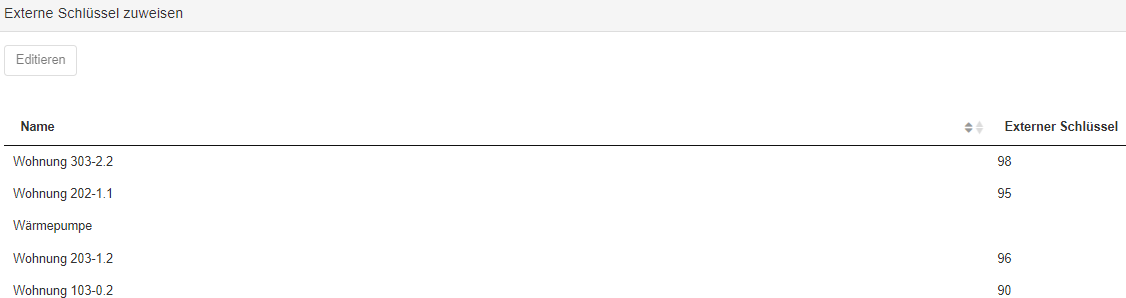
Connect cost units with billing units For each billing unit in smart-me, an ID from the file must be available. <CostUnit><Id> must now be connected with the apartment via the external keys.
E.g.: 3 1/2 room apartment ground floor right P2 (103-0.2) = ID 90 3 1/2 room apartment ground floor right P1 = ID 91
2. Connect cost centers (cost groups) with tariffs
For each <Costcenter>, an energy tariff must exist in smart-me
E.g.: Cold water tariff: ID= 20 Electricity peak tariff: ID = 23 Electricity off-peak tariff: ID=24
Tariffs can be combined automatically by entering the same ID for several tariffs.
Example: combined grid tariff cost center
- Assign the same ID to the off-peak tariff and the peak tariff, e.g. 23
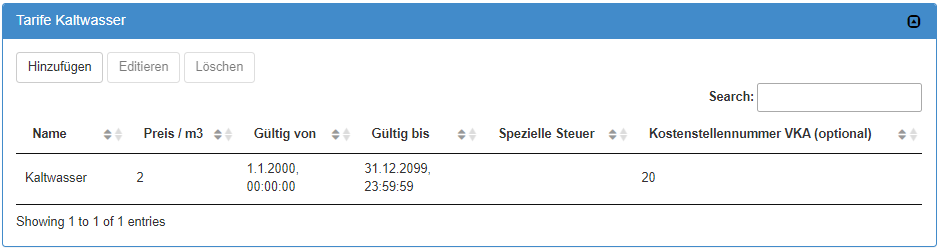
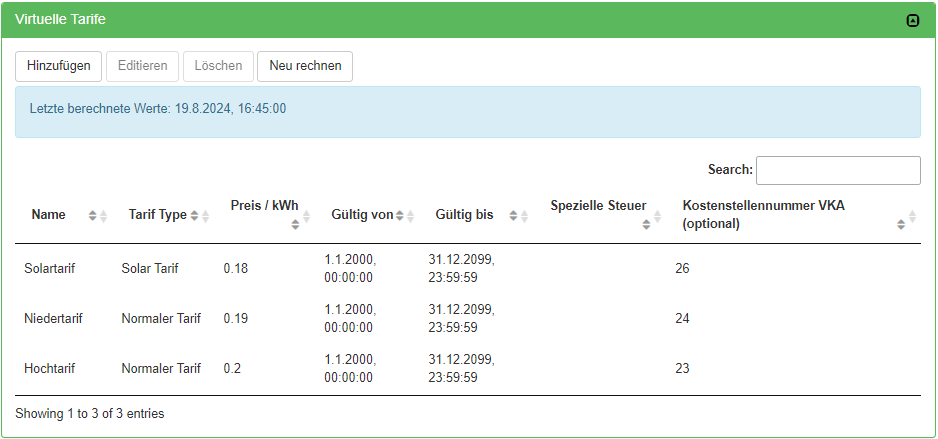
3. Connect cost units with billing units
For each billing unit in smart-me, an ID from the file must be available. <CostUnit><Id> must now be connected with the apartment via the external keys.
Found at the very bottom of the configuration page in Billing.
General conditions for a successful exchange
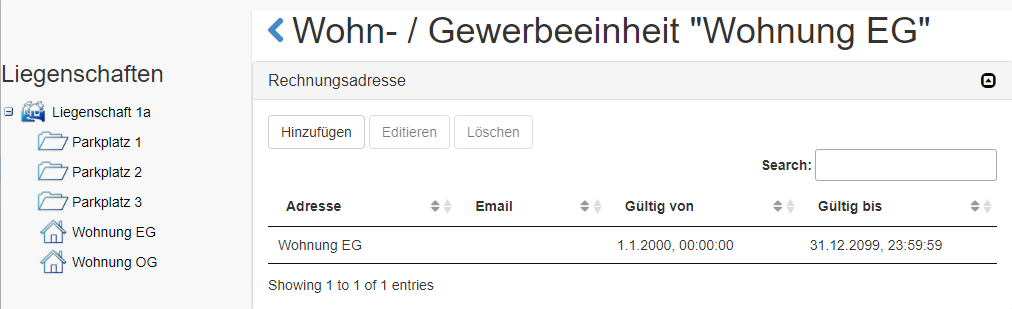
Tenant list
- Since the tenant lists are managed by the Immotop2 software, smart-me records the contract and also vacancies during the import and reflects them in the billing addresses.
Living areas
- Since the living areas are currently not transferred automatically from the Immotop2 software, the living area must be maintained and updated on the smart-me side.

Configurations on the smart-me side for price output
-
For the price to be calculated, the living area must be specified for every billing unit.
-
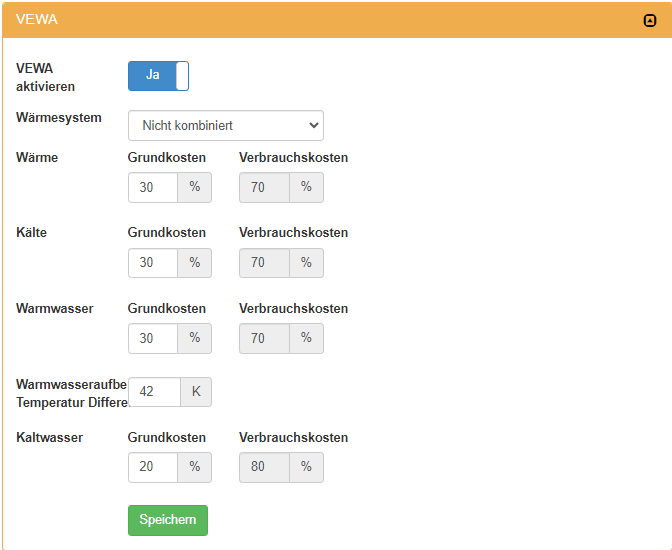
VEWA must be activated and configured with the allocation keys for basic and variable costs per energy type.
-
A billing period must be recorded for each energy type. The costs must be maintained and valid tariffs must be recorded for electricity.
7. Upload and export the DTA-VHKA file in smart-me
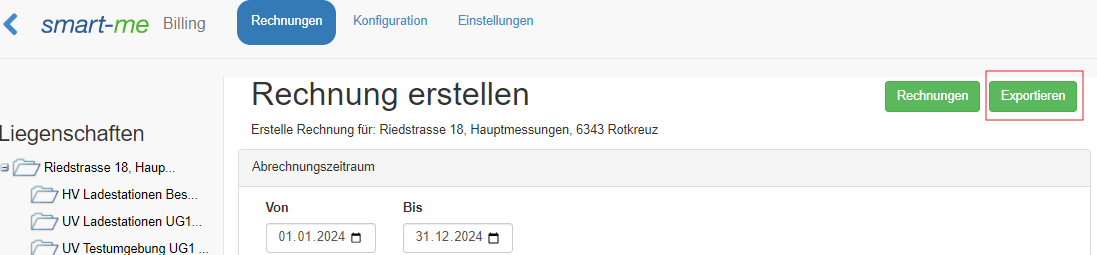
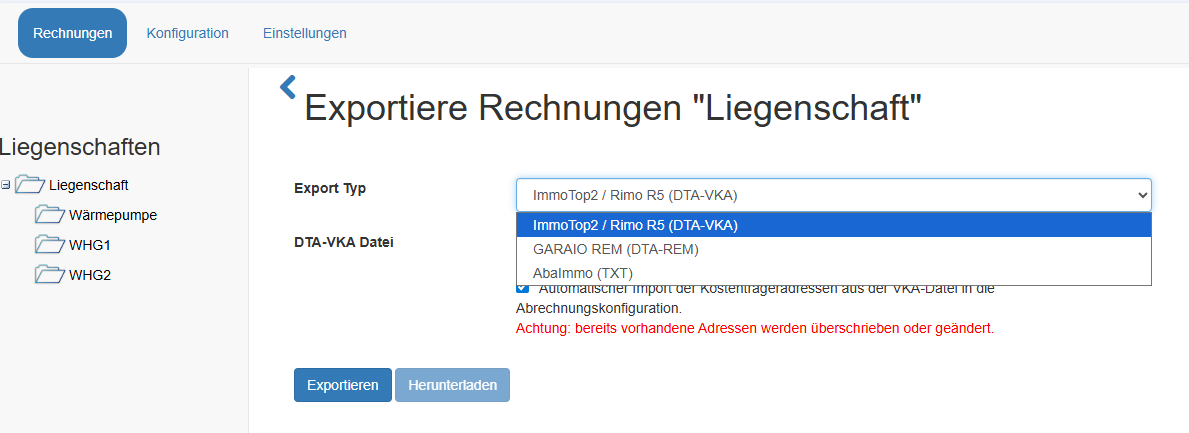
- In Billing, navigate to "Invoices" ("Rechnungen") and then to the "Export" ("Exportieren") section
2. Select the export type and upload the file using "Export" ("Exportieren").
3. Download the completed file to your computer using "Download" ("Herunterladen").
8. Import the DTA-VHKA file into Immotop2