Auto Export
smart-me lets you export measurement data automatically to another system.
Requirements
To use Auto Export, you need a smart-me Professional licence.
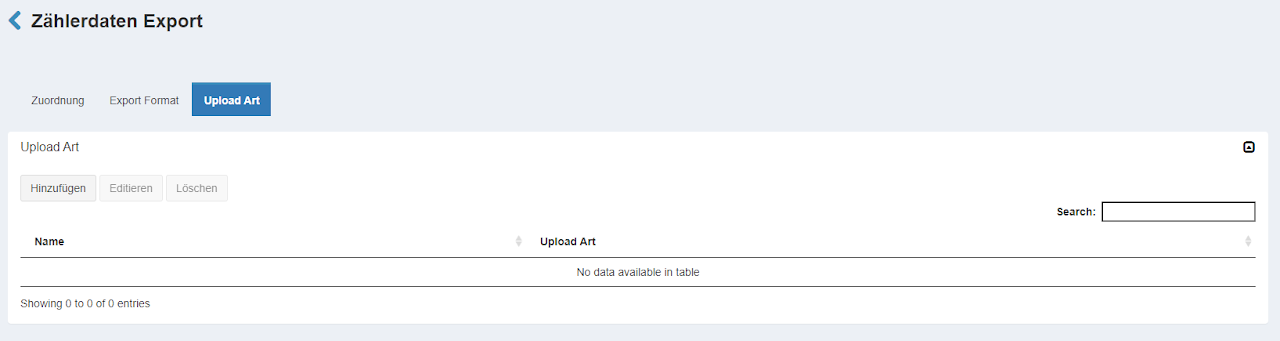
Functions for Gold Partners
If an account is assigned to a Gold Partner, the user sees the Gold Partner's predefined "Upload Types" ("Upload Arten") and "Export Formats" ("Export Formate") in addition to their own. This means, for example, that the FTP settings only have to be configured in the partner account and cannot be viewed or changed by the normal user.
The inherited settings have a blue background so you can identify them easily.
Bulk mutation (re-trigger an export)
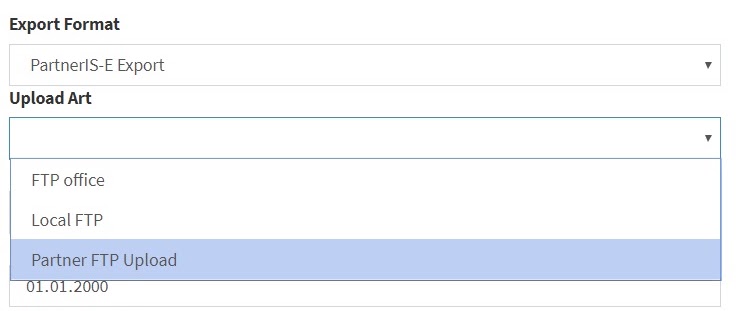
With a bulk mutation, you can re-trigger exports in smart-me for several devices at once.
How the date entry works:
For the mutation, enter the date of the last successful export. From there, the system automatically calculates the next period.
Example (daily export):
-
You enter the date 03.02.2026.
-
The system assumes: the export on 03.02.2026 was fine.
-
The system now starts the export for 04.02.2026 (content: data from 03.02.2026, 00:00 to 23:59).
Note the processing time: Regenerating export files takes time. As a guideline, allow approx. 45 minutes per individual file.
-
Daily export: a full month (30 days = 30 files) takes about 22 hours.
-
Weekly export: a full month (4 weeks = 4 files) takes about 3 hours.
Bulk mutation (replace metering point ID)
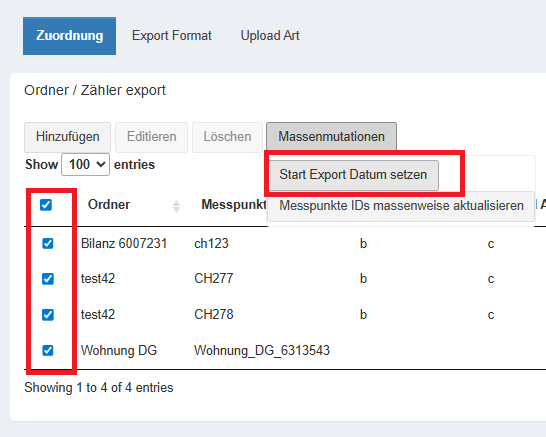
With the bulk mutation, you can replace existing metering point IDs with new ones quickly and without errors.
Procedure:
-
Create a simple CSV file.
-
Each line represents one metering point.
-
The file must contain the old and the new name of the metering point ID, separated by a semicolon (;). Example: Alte_ID_123;Neue_ID_456
-
Upload the CSV file. The IDs are overwritten directly in the system.
Note: If a metering point is not listed in the CSV file, it is not changed. This makes it easy to replace only some of them (e.g. only 5 of 50 metering points in an account).
Upload type
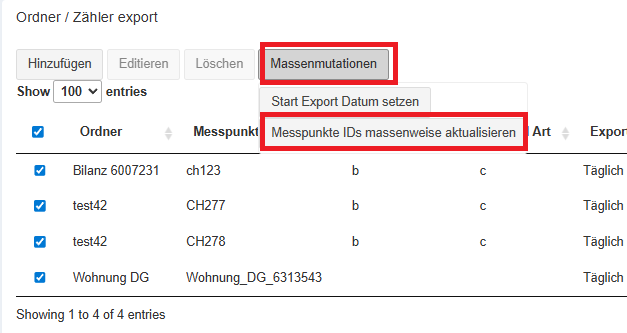
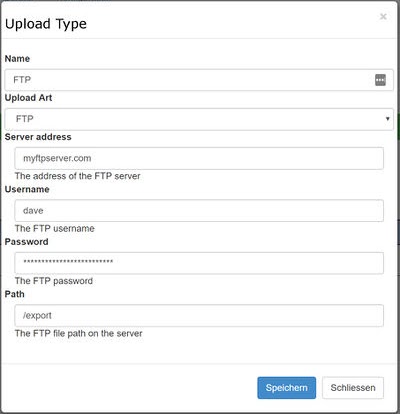
The upload type defines how the data is to be uploaded to the external system. The following types are currently supported:
FTP: FTP upload (unencrypted)
FTPs: Encrypted FTP upload
- The port can be specified explicitly with a :, e.g. ftp.smart-com:990
sFTP (with username and password): Encrypted FTP upload.
- Username and password
sFTP (with key file): Encrypted FTP upload. A key file is used instead of a password.
-
Example for creating an sFTP key file with openssl
-
openssl genrsa -out key.pem 2048
-
openssl rsa -in key.pem -DES-EDE3-CBC -traditional -out enc_key.pem
-
Example: enc_key.pem
Note: The password must not contain the following characters (<, >, =)
Export format
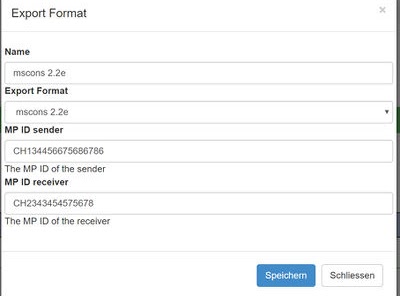
The export format defines the file format for the export. The following formats are currently supported:
CSV: The format is defined (CSV), but the content is not standardised.
- Basic export to CSV format. The export of meter values is defined using Obis codes. For details, see the section below.
IS-E: Export to an innosolv-Energie system from Innosolv AG
-
Meter reading
-
Virtual meter reading (if calculated in smart-me and the folder is selected)
IS-E Vorschub / IS-E feed: Export to an innosolv-Energie system from Innosolv AG
-
Consumption
-
Virtual consumption (if calculated in smart-me and the folder is selected)
IS-E peak export
-
Shows peak power.
-
Note: 1) For the assignment, select the folder with virtual tariffs, 2) for the assignment, under measured values to export, select "Virtual tariffs (IS-E only)" ("Virtuelle Tarife (nur IS-E)"), 3) in the export format, specify the virtual tariff numbers (Export Tariffs (peak)) that exist in smart-me Billing.
IS-E Zeitreihen / IS-E Load profile: Export to an innosolv-Energie system from Innosolv AG
-
Time series module (consumption 15 minutes)
-
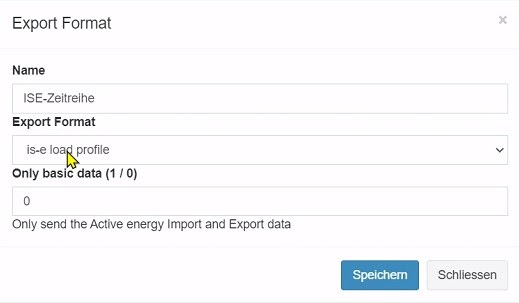
Only basic data (1 / 0)
-
1 kWh only
-
0 kWh and kvar
-
empty kWh and kvar
-
-
mscons 2.2e: mscons (Metered Services Consumption report message) in version 2.2e.
Note: Please use this format for encontrol.
- Consumption
mscons 2.4a: mscons (Metered Services Consumption report message) in version 2.4a
- Consumption
Reactive energy with is-e load profile
Set "Only basic data" to 0 to export the reactive energy
Assignment
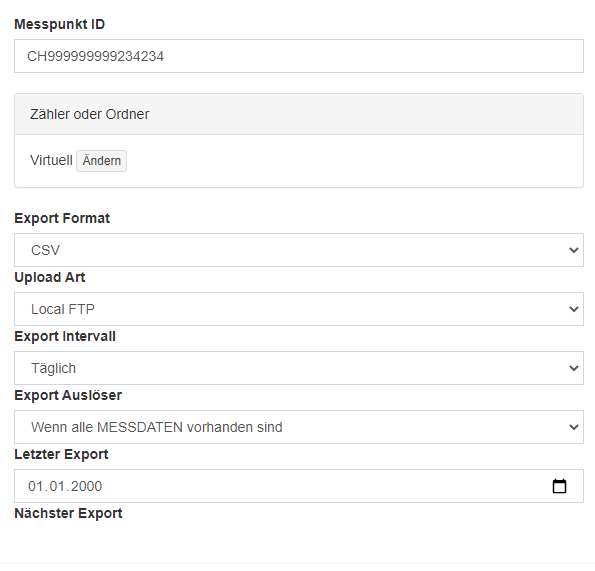
The automatic export consists of several configurations:
Metering point ID ("Messpunkt ID"): Defines the ID to be assigned to this metering point. This ID is used, for example, in the mscons export format.
Meter or folder ("Zähler oder Ordner"): The meter or folder to be exported.
Export format ("Export Format"): Defines the format that can be used for the export. The export format is defined under the menu item "Export Format".
Upload type ("Upload Art"): Specifies how the data is to be uploaded to the external system. The upload type is defined under the menu item "Upload Art".
Export interval ("Export Intervall"): Specifies the interval at which the data is to be exported.
Export trigger ("Export Auslöser"): Defines what triggers the export.
-
"When all MEASUREMENT DATA is available" ("Wenn alle MESSDATEN vorhanden sind") triggers as soon as all data is available. If the data is never complete (e.g. because the start value was before the installation), it will never trigger.
-
"12h after the end date" ("12h nach dem Enddatum") triggers 12 hours later, regardless of whether all data is available or not.
-
Note: Auto Export starts between 0:00 and 1:00 and can take up to 3h.
Start date of next export ("Start Datum nächster Export"): The start date for the next export of the data. If the date is in the past, all data up to the current date is exported.
Measured values to export ("Zu exportierende Messwerte"): If you select a folder with virtual tariffs, you can choose whether to export the normal measured values or the virtual tariffs.
Exporting virtual tariffs
If you have set up virtual tariffs in smart-me Billing, you can export them to IS-E.
Setup
-
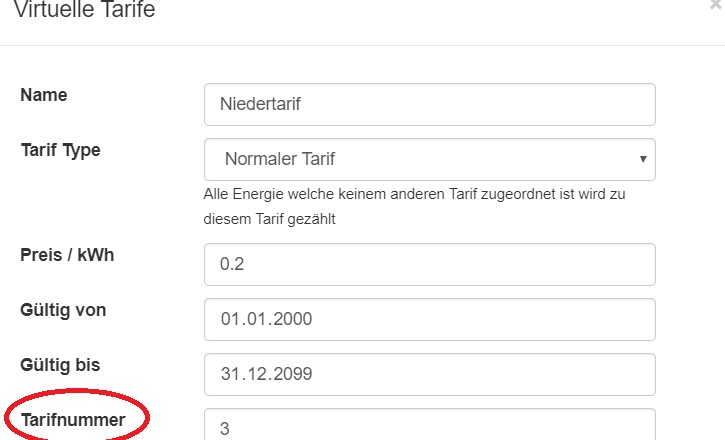
Create the virtual tariffs in smart-me Billing. Make sure you set the tariff number of the virtual tariff correctly. During the export, it is encoded as the "tariff" in the Obis code. Example: tariff number 3 results in Obis: (IS-E meter readings) 1-5:1.8.3 (1-5:1.8.<tariff number>), (IS-E Vorschub) 1-5:1.9.3 (1-5:1.9.<tariff number>)
-
In "Auto Export", under "Assignment" ("Zuordnung"), select the folder with the virtual tariffs and, under "Measured values to export" ("Zu exportierende Messwerte"), select "Virtual tariffs" ("Virtuelle Tarife").
Test files
-
csv: The CSV file can be configured individually. The test file was generated with the configuration «1-0:1.8.0*255;1-0:1.8.1*255;1-0:1.8.2*255;1-0:2.8.0*255;1-0:2.8.1*255;1-0:2.8.2*255;».
Obis codes
OBIS codes are used to describe a (meter) value.
Decoding tip: On this website you can read up on how the coding system works. If you click on a medium there, you can see what each digit of the code stands for.
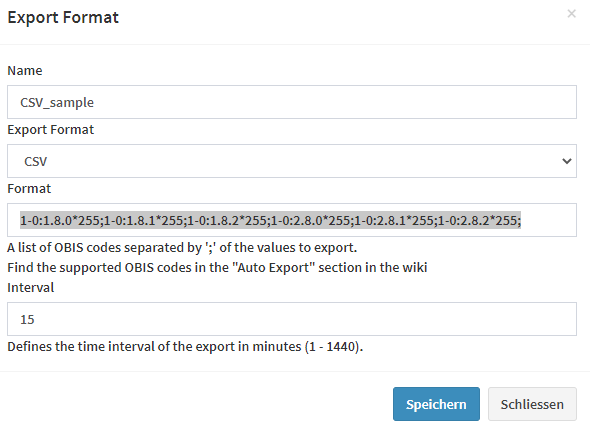
The csv test file was exported with the configuration above.
Supported Obis codes
OBIS codes are used to describe a (meter) value: Obis Codes (Excel)
Decoding tip: On this website you can read up on how the coding system works. If you click on a medium there, you can see what each digit of the code stands for.
Obis code IS-E
1-1:1.8.0: Active Energy Total Import
1-1:1.8.1: Active Energy Tariff 1 Import
1-1:1.8.2: Active Energy Tariff 2 Import
1-1:2.8.0: Active Energy Total Export
1-1:2.8.1: Active Energy Tariff 1 Export
1-1:2.8.2: Active Energy Tariff 2 Export
1-1:5.8.0: Reactive Energy Q1
1-1:6.8.0: Reactive Energy Q2
1-1:7.8.0: Reactive Energy Q3
1-1:8.8.0: Reactive Energy Q4
5-1:1.0.0: Cold (energy)
6-1:1.0.0: Heat (energy)
8-1:1.0.0: Cold water (m3)
9-1:1.0.0: Hot water (m3)
Obis code mscons
1-1:1.29.0*255: Active Energy Total Import (load profile)
1-1:2.29.0*255: Active Energy Total Export (load profile)
1-1:5.29.0*255: Reactive Energy Q1 (load profile)
1-1:6.29.0*255: Reactive Energy Q2 (load profile)
1-1:7.29.0*255: Reactive Energy Q3 (load profile)
1-1:8.29.0*255: Reactive Energy Q4 (load profile)
5-1:1.29.0*255: Cold (load profile)
6-1:1.29.0*255: Heat (load profile)
8-1:1.29.0*255: Cold water (load profile)
9-1:1.29.0*255: Hot water (load profile)
Obis code CSV
1-0:1.8.0*255: Active Energy Total Import
1-0:1.8.1*255: Active Energy Tariff 1 Import
1-0:1.8.2*255: Active Energy Tariff 2 Import
1-0:2.8.0*255: Active Energy Total Export
1-0:2.8.1*255: Active Energy Tariff 1 Export
1-0:2.8.2*255: Active Energy Tariff 2 Export
1-1:5.8.0*255: Reactive Energy Q1
1-1:6.8.0*255: Reactive Energy Q2
1-1:7.8.0*255: Reactive Energy Q3
1-1:8.8.0*255: Reactive Energy Q4
6-0:1.0.0*255: Heat Energy
5-0:1.0.0*255: Cold Energy
8-0:1.0.0*255: Cold Water Volume
9-0:1.0.0*255: Hot Water Volume