AI Connector
Connecting smart-me to an AI assistant
smart-me operates a connector that lets an AI assistant work directly in your smart-me account. Claude, ChatGPT and other assistants can use it. You connect it once and then simply ask in plain language for what you want to know, instead of clicking through the portal:
“How much did the heat pump consume last month, and what did that cost at the current tariff?”
Technically, it is an MCP server (Model Context Protocol, an open standard for giving an assistant access to a tool or data source) at https://mcp.smart-me.com/mcp. Nothing needs to be installed and no API key needs to be created.
It acts on your behalf with your own permissions, it asks before it changes anything, and it stores nothing: no password, no token, no copy of your data.
What you need
-
a smart-me account
-
an assistant that supports MCP connectors: Claude (web, desktop, mobile), ChatGPT or another MCP client
-
a Professional license for load profiles and long value series.
Connecting
In Claude:
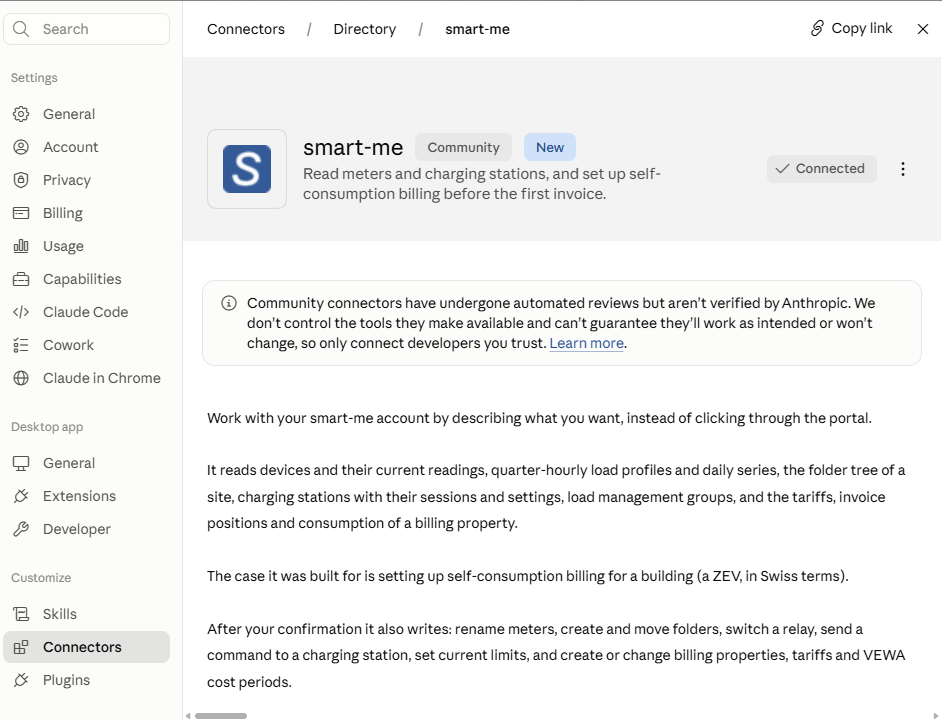
Open Settings → Connectors, search for “smart-me” and click “Connect”. Or directly via this link:
In ChatGPT:
Open “Plugins” in the sidebar, search for “smart-me” and click “Install plugin”. Or directly via this link: smart-me in ChatGPT
In the chat, you call the connector with @smart-me, for example: “@smart-me Show me the last 7 days of the solar meter as a chart.”
Note: ChatGPT can pass relevant chats and memories to the connector as context. You can control this in the ChatGPT settings or disconnect at any time.
Others:
Add a custom MCP server: https://mcp.smart-me.com/mcp
The smart-me login page opens. Log in as usual and confirm the access. Your password is never passed to the assistant.
What you can ask
In any language, not just English.
Meters and consumption
-
“Which meters are in my account, and what values are they currently showing?”
-
“Give me the 15-minute load profile of the main meter for last Tuesday and tell me when the peak was.”
Charging stations
-
“Is anything charging right now, and how much is the whole group drawing?”
-
“Show me the charging sessions of the station in the garage this month.”
Self-consumption billing (ZEV)
-
“Check the configuration of my property before I create the first invoice.”
-
“Here is a list of 14 meter serial numbers with apartment numbers and tenants. Set up the property.”
And much more!
What the connector can do
Read: all meters in the account and their current values, 15-minute load profiles and daily series, the folder tree of a property, charging stations with their charging sessions and settings, load management groups, as well as tariffs, invoice items and consumption of a billing property.
Write, after your confirmation: rename meters, create and move folders, switch a relay, send a command to a charging station, set current limits, create or change billing properties, tariffs and VEWA cost periods.
Every tool declares whether it reads or writes, so that a write operation is confirmed before it happens. Deleting a folder or a charging station takes two steps: the first shows what would be removed, the second requires the exact name.
You do not need to add it manually: the connector is officially published and can be found in several directories — in the Claude Connectors Directory, in the official MCP Registry as com.smart-me/smart-me, on Glama and in the Raycast MCP Registry. The review at ChatGPT is in progress.
In short: smart-me provides the meters of an account via an MCP server at https://mcp.smart-me.com/mcp. An AI assistant such as Claude or ChatGPT can use it to read electricity meters, heat and water meters, 15-minute load profiles, charging stations and the ZEV (association for own consumption) billing directly from the user's account and, after confirmation, also change them — without installation, without an API key, with the permissions of the logged-in user.