Pico Display
This page describes the behaviour of the Pico screen.
Display
The description of the display applies to all firmware versions from 0.0.28 onwards.
Sequence: no active charging
Displayed when no vehicle is connected and no charging is taking place. You can personalise this image yourself.
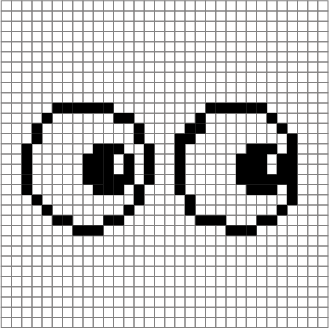
Sequence: plugged-in car waiting for approval
Displayed repeatedly when the car is plugged in but the station has not yet been approved in the backend.
Displayed repeatedly when the car is plugged in but the station has not yet been approved in the backend.
Sequence: authentication with CarID (Pico Online)
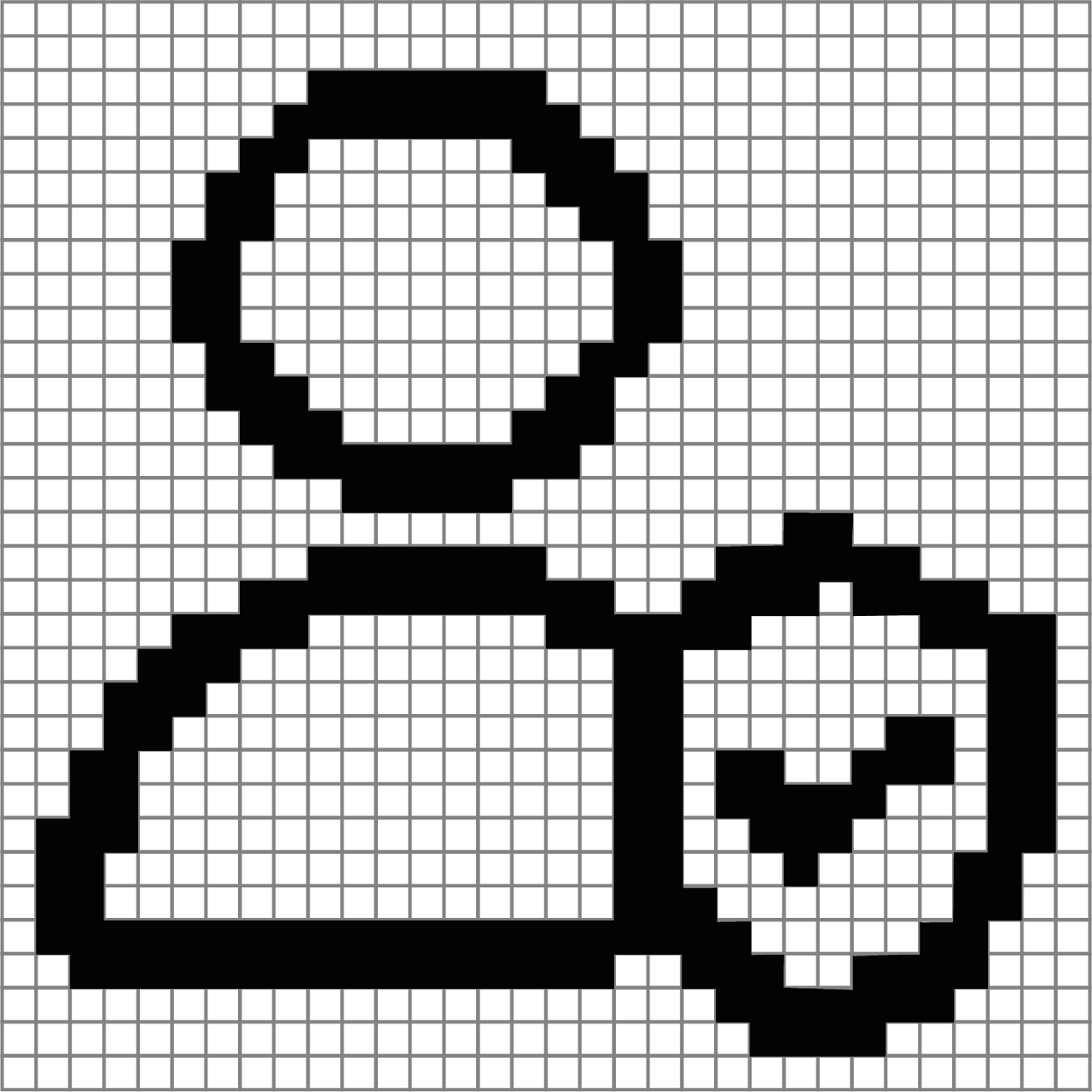
Displayed when the car is plugged in and the Car ID is being checked.
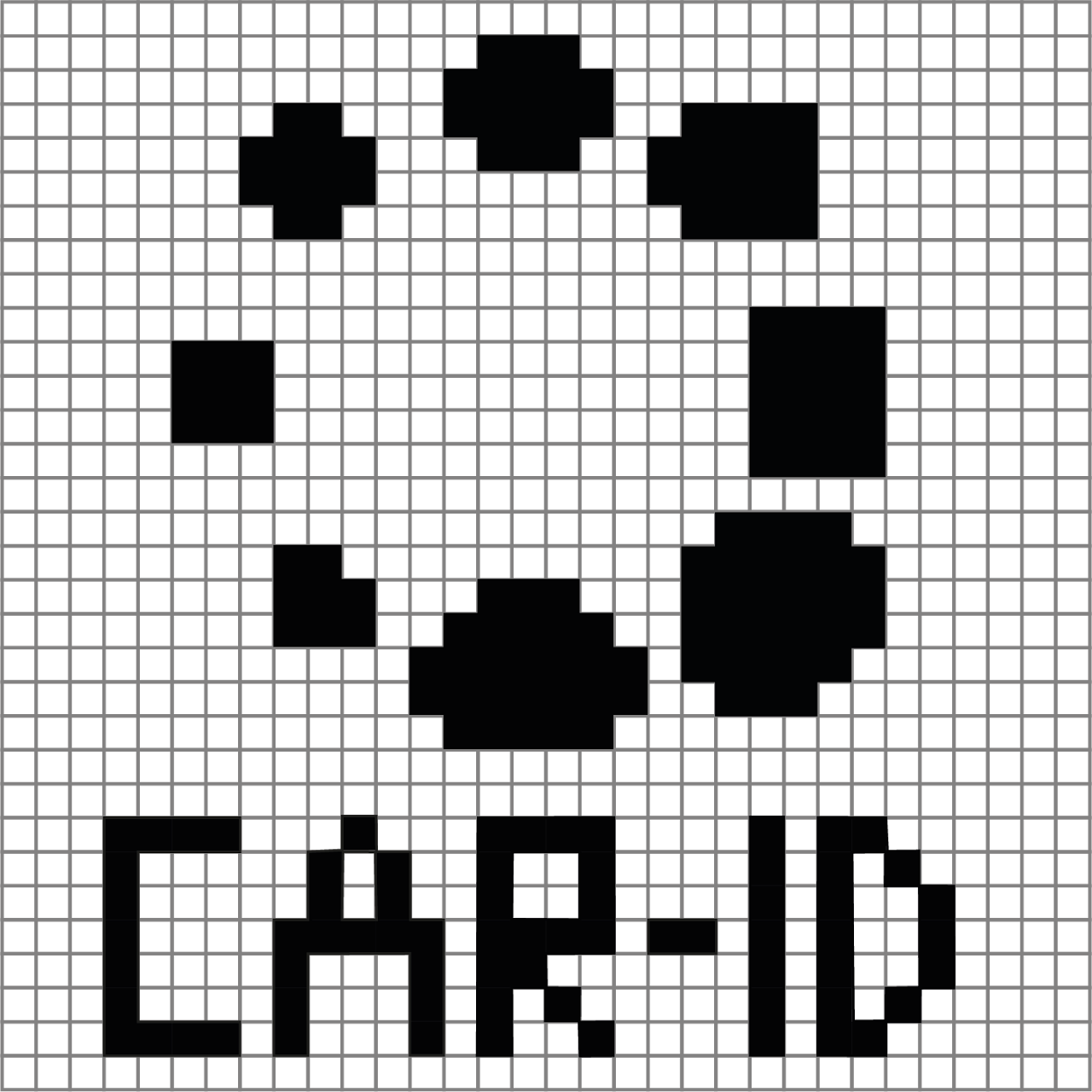
Displayed when the vehicle is not authorised or the Car ID is not stored in the eCarUp driver account. The Pico then switches to the "Sequence: plugged-in car waiting for approval"
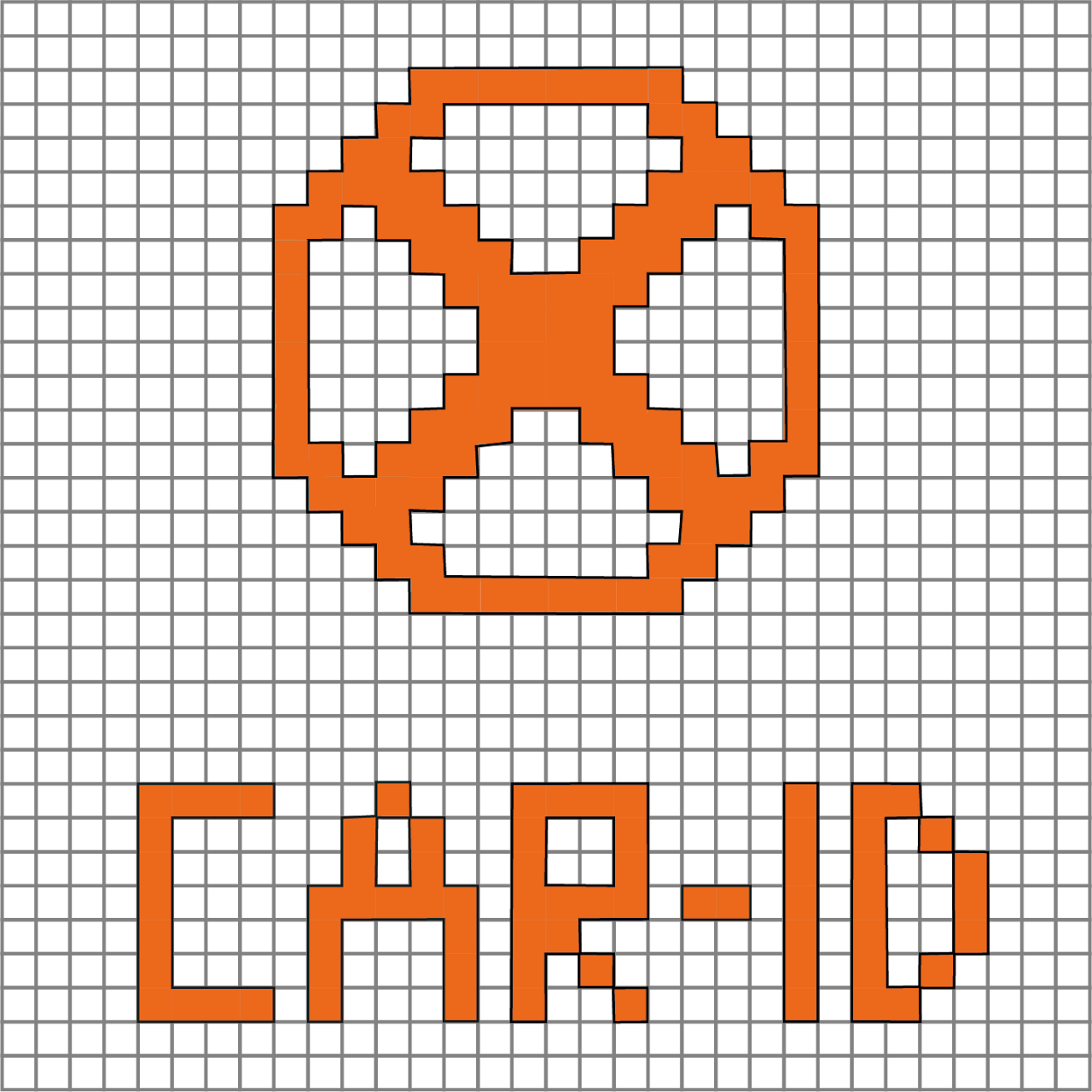
Displayed when the vehicle is authorised. The Pico then switches to the "Sequence: active charging".

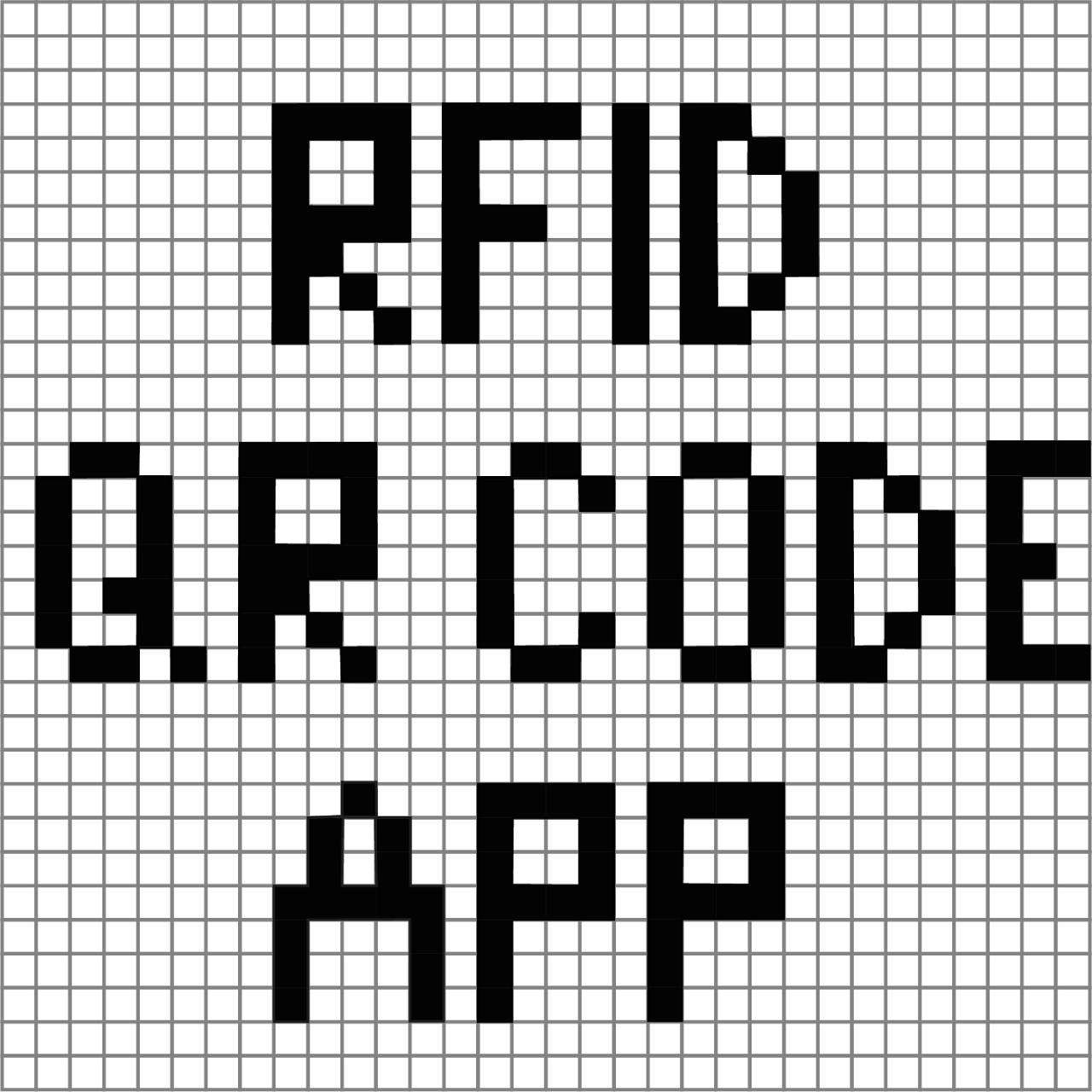
Sequence: authentication with RFID (Pico Online)
The RFID card is being checked. With a very good connection, the text may not be displayed at all.
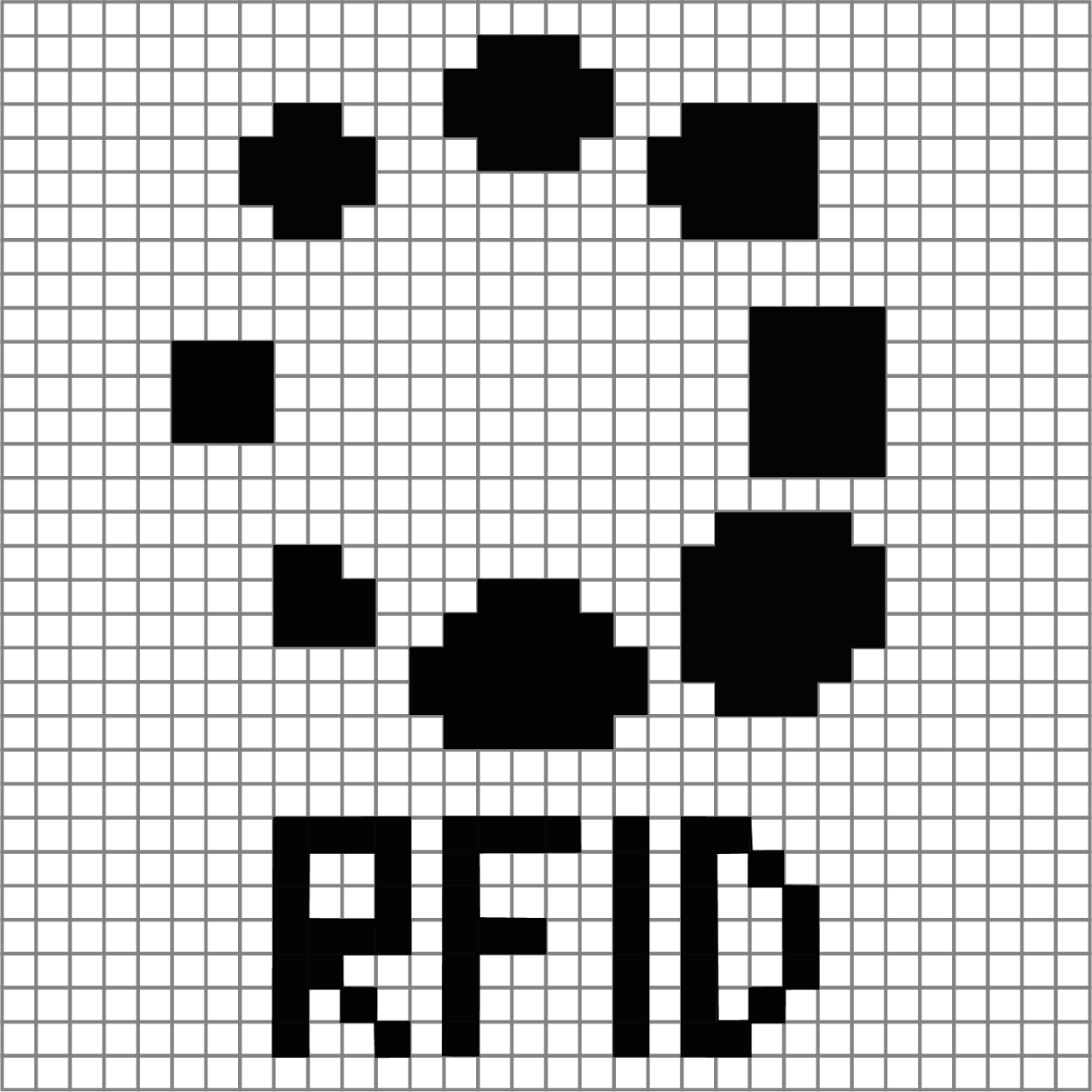
Displayed when the RFID is authorised.

Displayed when the RFID authorisation was successful and no car is plugged in. If a car is plugged in, this display is skipped and the Pico switches to the "Sequence: active charging".
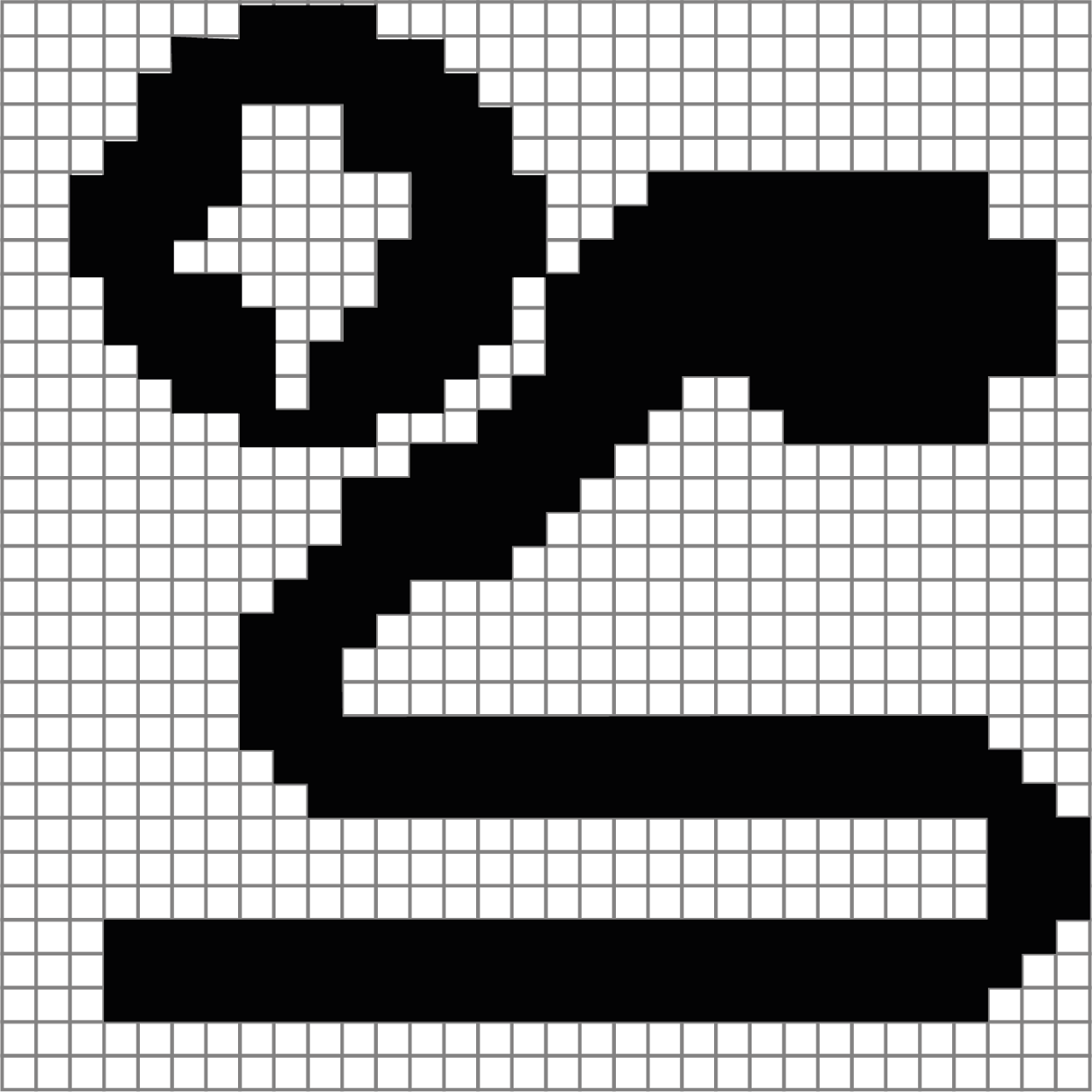
Displayed when the RFID is not authorised. The Pico then switches to the "Sequence: plugged-in car waiting for approval" or the "Sequence: no active charging".

Sequence: authentication with QR code (Pico Online)
Charging was successfully approved with the QR code.
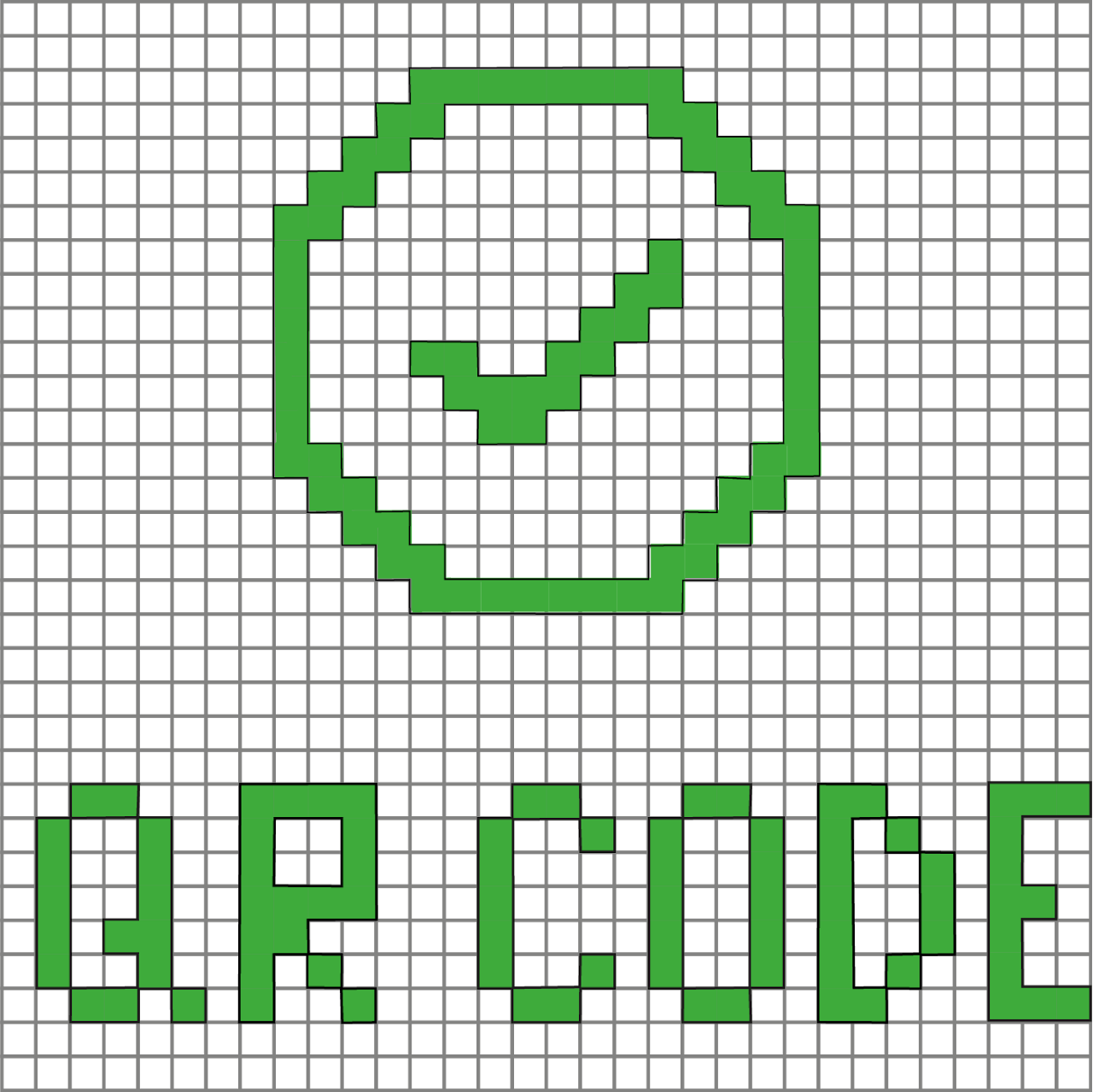
Displayed when the authorisation was successful and no car is plugged in. If a car is plugged in, this display is skipped and the Pico switches to the "Sequence: active charging".
Sequence: start of charging
Value / symbol Description
6A Minimum charging current

Value / symbol Description
32A Max. permitted charging current
When the station increases the maximum charging current, this image is briefly displayed with the new max. charging current.

Sequence: active charging
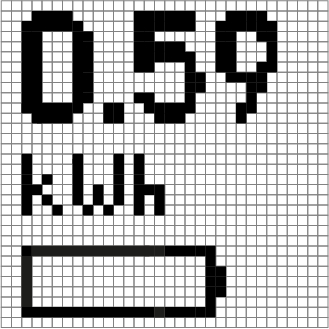
Value / symbol Description
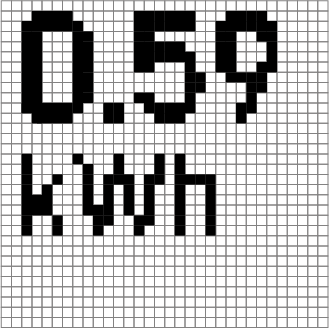
0.59 Consumption since start of charging
kWh Unit of the displayed consumption
Battery No meaning
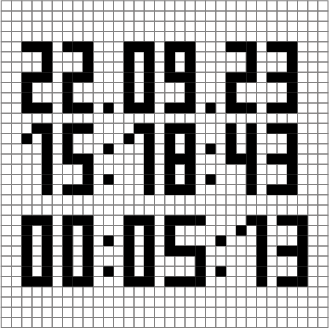
Value / symbol Description
22.09.23 Date
15:18:43 Start of charging
00:05:13 Duration of active charging
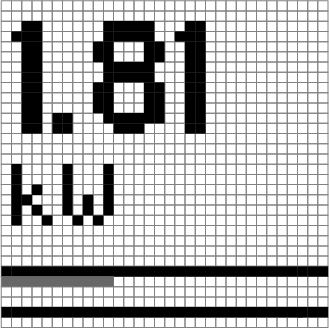
Value / symbol Description
1.81 Power
kW Unit of the displayed power
….. blue = max. power released by the station (1 pixel = 1A)
green = current drawn by the car per phase (1 pixel = 1A)
Sequence: end of charging
Value / symbol Description
32A Max. permitted current
When the station reduces the maximum charging current, this image is briefly displayed with the new max. charging current

Value / symbol Description
6A Minimum charging current

Value / symbol Description
BYE Successfully logged off

Value / symbol Description
0.59 Total consumption of the last charging session
kWh Unit of the displayed consumption
After logging off, the total consumption of the last charging session is displayed for approx. 14 sec.
Sequence: restarting the station
This sequence describes restarting a station via the portal
Value / symbol Description
BYE Signal for the restart
Value / symbol Description
0.59 Total consumption of the last charging session
kWh Unit of the displayed consumption
The screen stays black for approx. 20 sec.

This is the first sign that the Pico is starting up.
After the sequence for restarting the station, the Pico switches to the MID Mode sequence

Fault messages and warnings
Fatal fault
-
Error 1: Problem with the Wi-Fi module
-
Error 2: We have no M4 communication
-
Error 3: An error with the meter SOM
-
Error 4: Problem with the RDC sensor

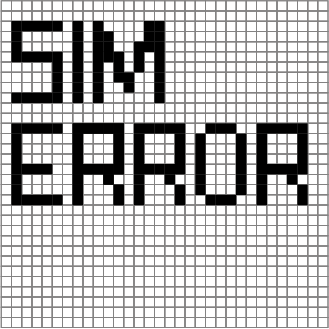
SIM Error
- Problem with the SIM
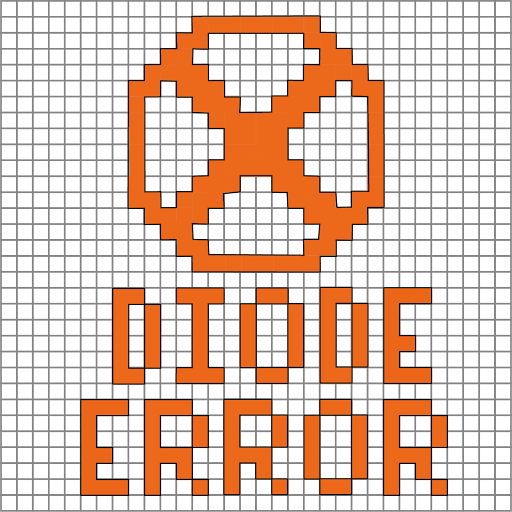
Diode Error
- The diode in the car is not correct. Check the charging cable and the plug connection to the car
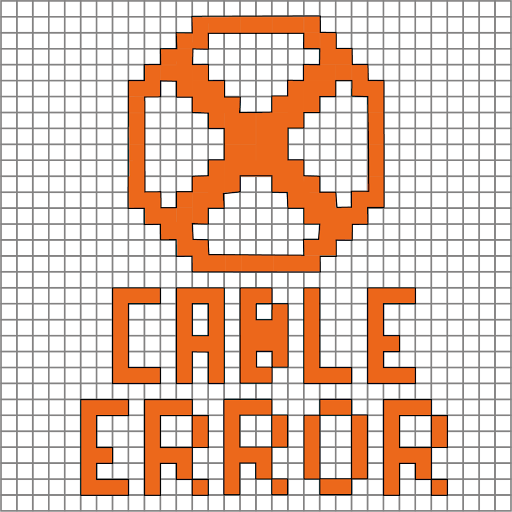
Cable Error
- The charging cable reports an error. Check that it is plugged in correctly.
P Limit
- Load shedding is active. The charging power has been reduced.

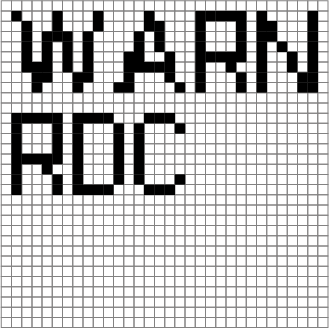
Warn RDC
- The RDC-DD 6mA according to IEC 62955 (residual direct current detecting device) has tripped. Charging was stopped for safety reasons.
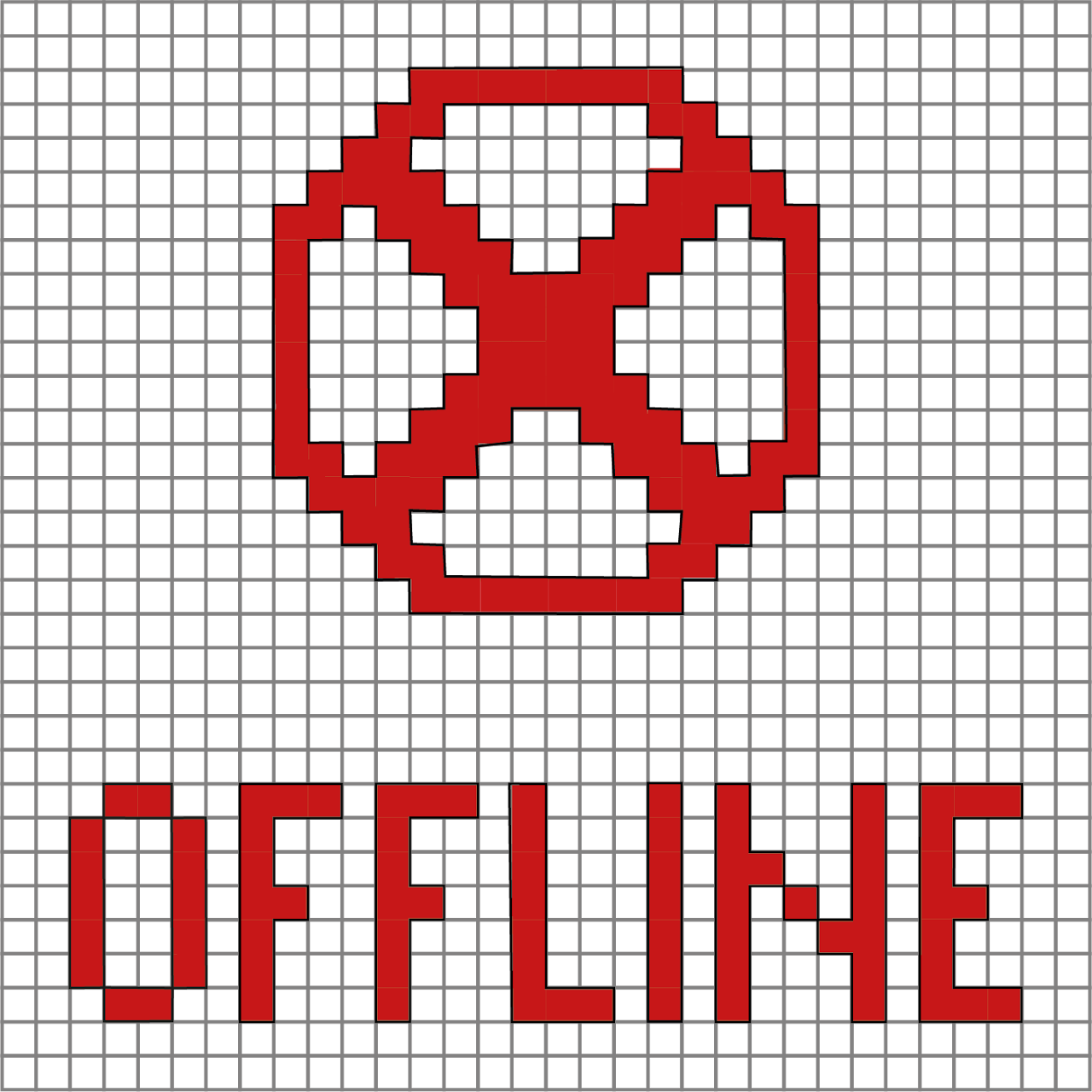
Offline
- The charging station has no connection to the smart-me Cloud.
LED lights up orange/red in the top right corner of the display
- Indicates an error message. After 30 seconds at the latest, the error image (e.g. Cable Error) is shown on the screen.

MID Mode
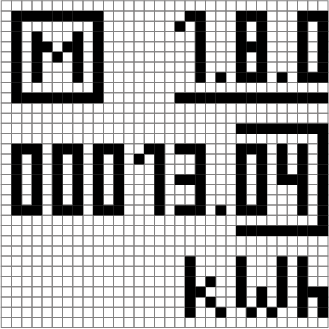
To enter MID mode, you can click "Show meter reading on display" ("Zählerstand auf Display anzeigen") via the advanced action in the smart-me portal, start or restart the station, or use the brightness sensor.
Using a torch on the brightness sensor, the user can flash the following code: dark - light - dark - light - dark (each state must last between 1 and 5 seconds)
Value / symbol Description
Dot Light sensor

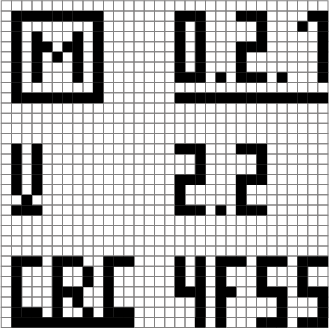
Value / symbol Description M MID mode active
0.2.1 Version and checksum according to OBIS code
v 2.2 Version number of the firmware
CRC 4F55 Checksum of the firmware
Value / symbol Description M MID mode active
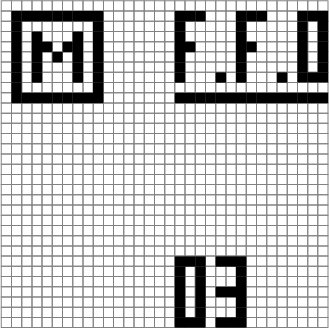
F.F.0 OBIS code
03 Error code
Only displayed if there is an error message.
Error code Description
x1-x3: Charging station is not calibrated x4: Display process error (checksum)
1x: Error in the meter SOM (hardware)
2x-3x: Meter SOM error (checksum)
4x: Meter SOM error (flash) Other: General meter SOM error
Value / symbol Description M MID mode active
1.8.0 OBIS code
00013.04 kWh The meter reading in kWh with 2 decimal places.