Kamstrup Module
smart-me module for the customer interface of the Kamstrup Omnipower meter.
The smart-me Kamstrup Module brings electricity meters into the cloud. Your customers receive accurate analyses, visualizations and precise monitoring of their own energy consumption. No additional hardware is required. The smart-me Kamstrup Module uses the existing WiFi network and connects directly to the smart-me Cloud.
Discontinuation notice sent in Switzerland on 08.08.2023 (partner network).
Sales in Switzerland will be discontinued as of 31.12.2023; support and cloud support remain guaranteed.
Sales outside Switzerland were discontinued on 1.1.2023; support and cloud support remain guaranteed.
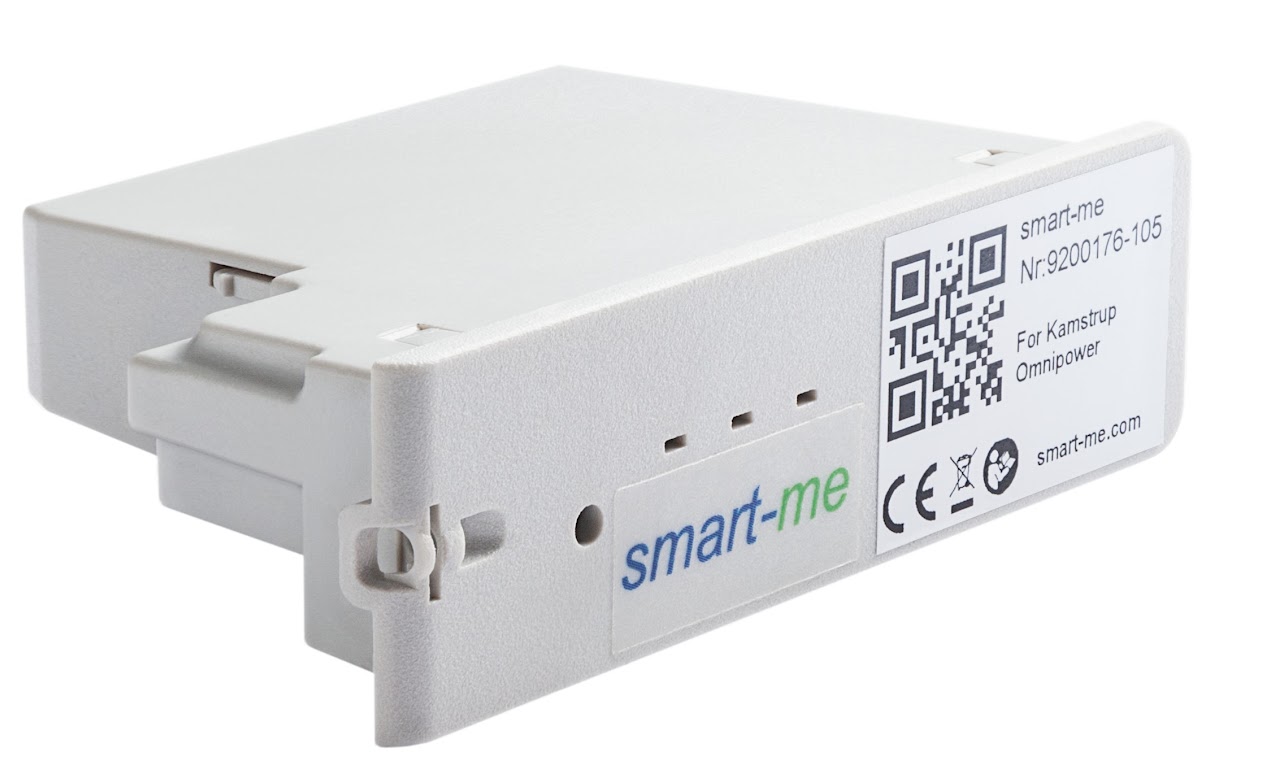
Kamstrup Module LED sequences with error descriptions
Most sources of error when installing a Kamstrup Module can be identified using the LED sequence:
Chapters
00:06 LEDs do not light up
00:18 WiFi is not created
00:59 LED flashing rapidly
01:14 LED running light
Features
-
Various charts and analyses
-
Online firmware update
-
Integrated data logger for one month
-
Can be used as a sensor to control devices
-
Encrypted WiFi connection directly to the smart-me Cloud
-
Real-time visualization of power, meter reading, voltage and current in the app and on the web. Without a Pro license, the reading interval is limited to 60 seconds.
-
Comprehensive energy management: automatic billing, control, optimization and alarms
-
Easy installation with the smart-me app for Android and iOS
-
Modbus-TCP from firmware version 8.0 (Note: without a continuous internet connection, the module cannot provide stable Modbus communication either)
How can I set the correction factor in the cloud?
To set the correction factor of a module or meter, proceed as follows:
-
Log in to the smart-me portal
-
Click on Configure (konfigurieren)
-
Click on Meter & Folder Configuration (Zähler/Ordner-Konfiguration)
-
Select the relevant meter
-
Click on Edit node (Knoten editieren) (green button at the top)
-
Enter the correction value under Value correction (Wert Korrektur). (Caution: only under Value correction (Wert Korrektur), not under Parent folder value correction (Überordner Wert Korrektur))
-
Click on Save (Speichern).
Kamstrup Module decryption
-
Click the gear icon (Settings (Einstellungen)) at the top right
-
Edit (Editieren)
-
Enter the meter key
Caution: The Kamstrup Module needs the meter's encryption PIN to be able to read the data. Only the energy supplier has this PIN.
How is the correction factor calculated?
-
Caution: This text does not refer to the transformer ratio of the Telstar CT, but to the correction factor in the meter/folder configuration. The correction factor is mainly required when using Kamstrup meters in combination with current transformers.
-
Example with a 600:5 current transformer: If a current transformer with a ratio of 600:5 is used, the value must be adjusted by a factor of 600 : 5 = 120. The correction factor must be entered as a percentage in the smart-me Cloud. This results in a correction factor of 120 * 100 % = 12'000 %
-
Example with a 600:5 current transformer and a Kamstrup meter preset to 100:5: Some Kamstrup meters have a preset transformer ratio of 100:5. If a current transformer with a ratio of 600:5 is connected to this meter, the correction factor is calculated as follows: Correction factor of the Kamstrup meter: 100 : 5 = 20 Correction factor for the current transformer: 600 : 5 = 120 Total correction factor: 120 / 20 = 6 Total correction factor as a percentage: 6 * 100 % = 600 % In this case, a correction factor of 600 % would have to be set in the smart-me portal.
How often is data transmitted
This can be set manually for each device.
- The interval can be reduced to as little as 1 second.
This can be set as follows
-
Log in
-
Select the meter
-
Gear icon at the top right
-
General settings (Allgemeine Einstellungen)
-
Set the upload interval (Upload-Intervall) (<60 seconds only possible with smart-me Professional)
-
Save settings (Einstellungen speichern)
Meter offline
- Serial number starts with 92*: Kamstrup
General information can be found under Meter offline.
Meter-specific information can be found here.
Restarting the meter
-
This is for information only, on how it is done.
-
Procedure: Remove the module from the meter. Wait until no LED is lit anymore. Slide the module back into the meter.
How do I recognize the reception status of a meter
-
Connected to WiFi: orange LED on the left and green LED on the right are permanently lit.
-
Cannot connect to WiFi: to be defined
-
Meter creates a local WiFi: orange LED on the left is permanently lit and. Red LED in the middle and green LED on the right light up alternately at 0.5-second intervals.
Check on arrival
The following points can be checked on arrival. If something has already been done to the meter, it is important that nothing is done to the meter for at least 5 minutes. It is also possible to ask the customer on site for a video of the meter (30 seconds) to better assess the situation.
-
Use the video to check the status: https://www.youtube.com/watch?v=CwS65mPsTws or https://vimeo.com/688374505
Changing the upload interval
-
Log in to the smart-me portal
-
Select the meter
-
Select the gear icon at the top right
-
General settings (Allgemeine Einstellungen)

Successor product
smart-me does not offer a successor product for Kamstrup meters.
If you operate a smart-me ZEV (association for own consumption) (Switzerland only) and need a new solution for your metering (e.g. HAK), feel free to contact us; we offer our project partners favourable conditions for the replacement. (Special offer valid until 30.06.2025)
If measurements are carried out in a private setting for monitoring, home automation, etc., the Telstar 80A or Telstar CT can be installed at any time. If you are looking for a solution with your existing Kamstrup meter, we recommend taking a look at this page. https://whatwatt.ch/de or https://gplug.ch/ (gPlug caveat: Note that the Kamstrup smart-me module uses an undocumented function of the customer interface (CII). In contrast, the gPlugK uses the publicly released CII. As a result, the gPlugK may not work on an Omnipower even though the smart-me product works with it. This problem can sometimes be solved by a change to the remote configuration by the grid operator.
Invalid meter key (CKW)
Problem
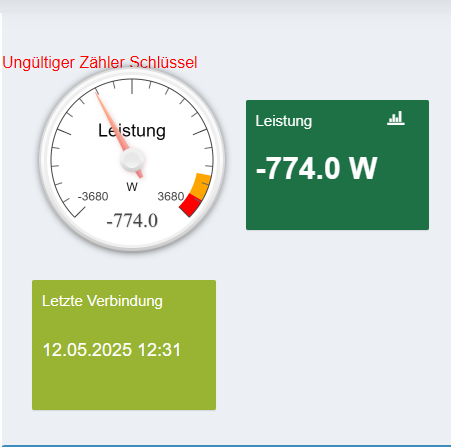
- Kamstrup Module is offline with the error message Invalid meter key (Ungültiger Zähler Schlüssel)
Solution
The cause of the problem has been known since 14.5.2025 13:43: During system maintenance by CKW, all keys of the Kamstrup meters were accidentally renewed and the previous ones invalidated.
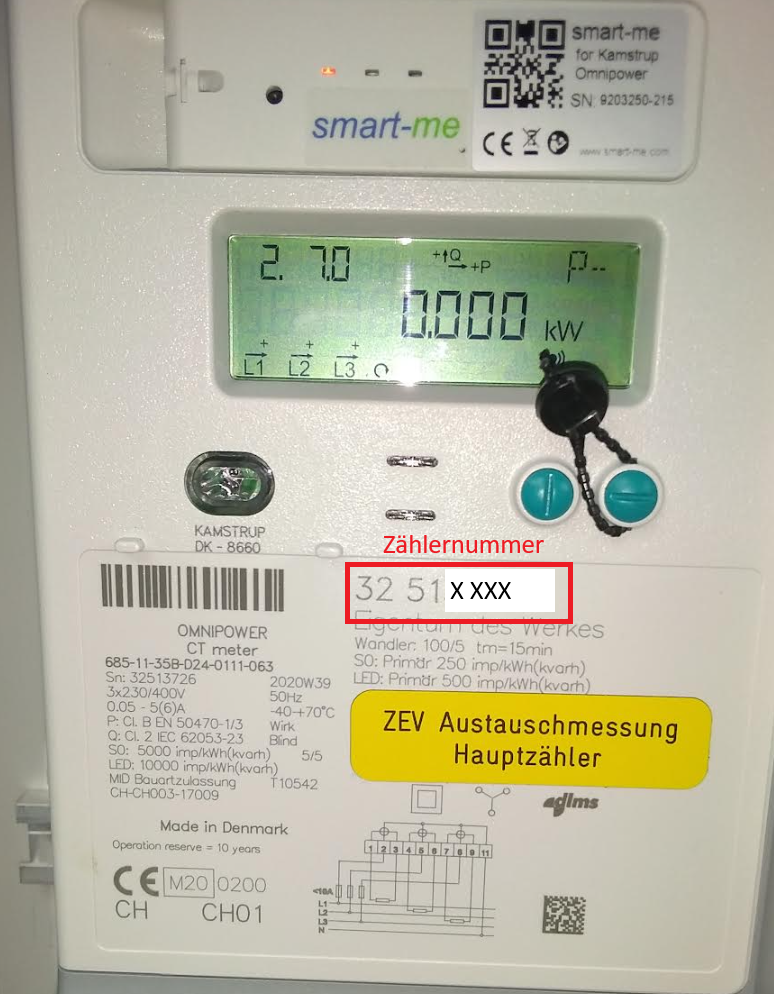
As a solution, you need to send CKW an email at messtechnik@ckw.ch with the meter number (see image at the bottom right). CKW will then send you a new key.
Downloads
Data sheet
Technical documents
FAQ
At what interval do the meters send data?
-
Every 15 minutes, i.e. at xx:00:00, xx:15:00, xx:30:00 and xx:45:00. This sends the data required for the load profile. In the event of a connection interruption, this data is stored locally and sent later.
-
In addition, an individual configuration can be set up:
-
With Basic or Limited licenses: max. 1x per minute.
-
With Pro licensing: max. 1x per second
-