Single Phase Meter 32A
The smart-me Meter is the first electricity meter that can be analysed and controlled from anywhere. No additional hardware is required. It uses the existing WiFi network and connects directly to the smart-me Cloud. This lets you conveniently view your energy consumption in real time.
Sales discontinued on 01.01.2023, support and cloud services continue to be provided.
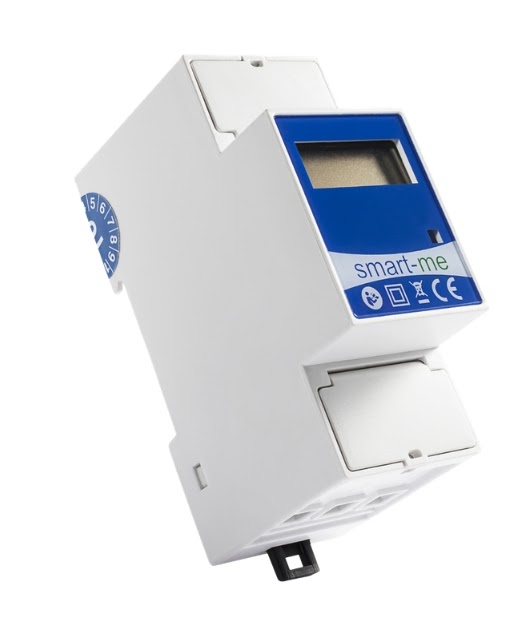
Features
-
Single-phase energy meter, 230 VAC 50/60 Hz
-
Direct measurement up to 32 A
-
Bidirectional meter
-
Additional S0 pulse interface
-
Accuracy class 1 according to IEC62053-21
-
Integrated data logger for two months (in the event of connection loss)
-
Direct, encrypted connection to the smart-me Cloud (WiFi)
-
Comprehensive energy management in the smart-me Cloud:
-
Real-time monitoring
-
Automatic billing (smart-me Billing)
-
Control with event-related actions and if/then actions
-
-
Easy installation with the free smart-me app for Android and iOS
Installation
See Commissioning
Technical data
| Feature | Value |
|---|---|
| Accuracy | 1 according to IEC62053-21 |
| Operating voltage | 85 - 253 VAC |
| Frequency (f) | 50 / 60 Hz |
| Max. current | 32 A (switchable) |
| Pulse input E1 | Potential-free*, 25V - 253V AC/DC |
| Digital output / pulse output S0 | Potential-free*, Opto Power MOSFET, 5-48VDC / 5- 230 VAC, max. 550mW |
| Reference current | 5 A |
| Starting current | < 20 mA |
| Tariffs | 2+ |
| Mounting | DIN rail |
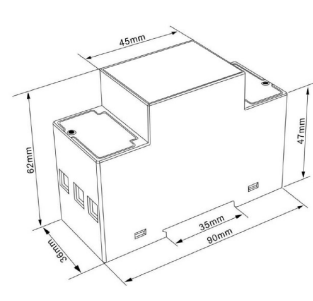
| Width | 2 modules, 36 x 90 mm |
| Interfaces | WiFi, S0 |
| S0 pulse value | 1000 pulses per kWh |
| Self-consumption | < 0.5 W |
*has no power supply of its own.
Configuring inputs and outputs
The smart-me Meter has one output and one input, which can be used as pulse input and output or as a switchable potential-free contact. You can find details here.
Dimensions and connections
Dimensions
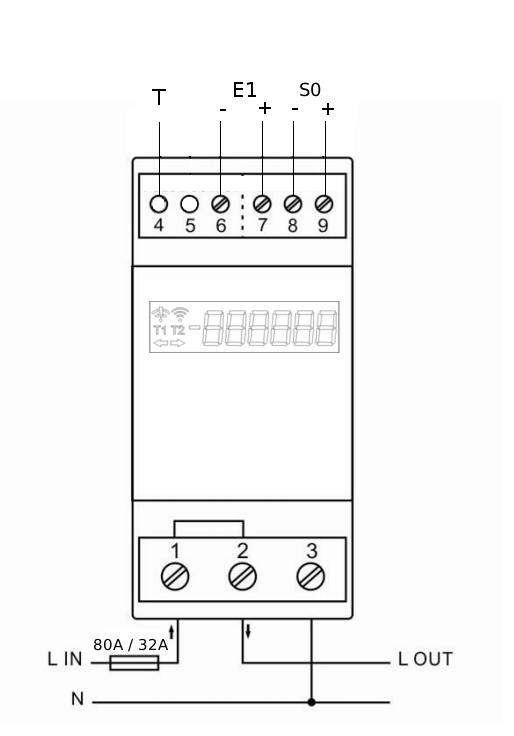
Wiring diagram
T1: Button for installation
E1: Tariff switching (digital input)
0V tariff 1
>25V tariff 2
S0: Pulse output (potential-free contact)
Changing the upload interval
-
Log in to the smart-me portal
-
Select the meter
-
Select the gear icon at the top right
-
General settings (Allgemeine Einstellungen)

Downloads
Data sheet
Technical data