If / Then Actions
Requirements
To use if/then actions, you need a smart-me Limited or Professional license.
To use the if/then action Pico control, you need a smart-me Professional license.
What IF / THEN actions are used for
-
Basis for tariff times for dual and multiple tariffs in Billing
-
Controls using the meter inputs and outputs
-
Alarms such as connection interruptions and meter standstills
Automatic controls can be created for every device in the smart-me platform. There are two ways to define such actions: either you create event actions or if/then actions. This article explains if/then actions. Compared to event actions, more complex triggers and actions can be defined:
-
-
multiple triggers (AND and OR operators) are possible
-
multiple actions are possible
-
a group of meters can be monitored / switched
-
connection monitoring
-
meter standstill
-
If/then actions
If/then actions are stored in the cloud and therefore only work if the device concerned has a Wi-Fi connection. You can create an unlimited number of if/then actions for all smart-me devices. If/then actions can only be created and changed in the web portal.
Procedure
-
Log in to our website with your username and password
-
Click Configuration (Konfiguration)
-
Click the If/Then Actions (Wenn /Dann-Aktionen) tile
-
Click the + symbol to create a new action, or click an existing one to edit it.
Requirements for working if/then actions:
-
At least one if event must be defined, as it triggers the action. If several if events have been defined, they can be combined with AND and OR operators.
-
At least one then action must be defined (exception: condition for tariffs). If several then actions have been defined, they are all executed simultaneously as soon as the if condition(s) are met.
-
A name for this action
If events
The following if events (triggers) are available:

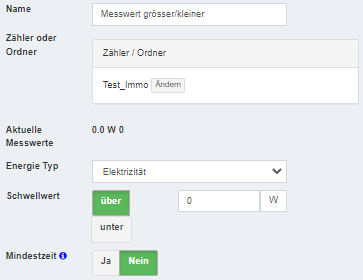
Measured value greater/less (Messwert grösser/kleiner)
-
Define which energy measuring device is to be monitored.
You can also select entire folders; the average value of all meters in that folder is then monitored. You can use any energy meter connected to the cloud — in addition to electricity meters, this includes gas, heat or water meters (gateway).
The test value always refers to the main attribute.
-
For electricity meters, the 3-phase power in W or kW.
-
For heat or cooling meters, W or kW.
-
For water meters and gas meters, m3/h.
Also specify how long the measured value must be below or above the threshold to trigger the then action.

Date and time (Datum und Uhrzeit)
You can set individual events or time spans as an if event.
A distinction is made between the following variants:
-
Individual events
-
Time span events
Individual events:
Individual events are always executed at a specific point in time. If this was not possible at that time for technical reasons (e.g. no internet), the command is only repeated the next time the condition occurs. This variant is suitable if other sources are to change the affected switching state in the meantime.
Time span events:
Time span events are checked and repeated every 5 minutes within the defined time span. The switching state would be changed as soon as the technical problems were resolved, but this prevents external intervention on the controlled switching states.


No connection (Keine Verbindung)
An if event can be set for meters disconnected from the cloud. The following settings must be made:
-
Which meter / folder is to be monitored
-
How long the connection must be interrupted, in minutes
Tip: If a folder is selected, all meters below it in the hierarchy are monitored.
Note:
This if action is executed only once. The command is only executed again after all meters (folder) affected by this alarm have been back online. (in the event of an alarm, therefore briefly check the current connection of all meters)

Meter standstill (Zählerstillstand)
An if event can be set for a meter standstill. The following settings must be made:
-
Which meter is to be monitored
-
How long the meter standstill must last until the condition is met.
Note:
Use more than one day (1440 minutes) as the time unit here, or at least twice the longest meter readout interval.

Switching states (Schaltzustände)
Instead of monitoring the power of a meter, you can also monitor the switching state. The following settings must be made:
-
Which meter is to be monitored
-
Where exactly the switching state is to be monitored (output or input)
-
Phases (only 3-phase meter 32A and Plug)
-
-
In which state the then action is to be triggered: "On" ("Ein"), "Off" ("Aus") or on a change of state.
-
Minimum time: how long the meter must be in this state until the condition for the then action is met.

The Currents greater / less (Ströme grösser / kleiner) function enables loads to be controlled in order to avoid overload situations at reference points.
Specifically, it can serve as a trigger for a Pico control.
The function automatically tracks the strongest positive current of the device.
Note: This also applies if the threshold "below" is selected.
Example 3-phase meter:
Phase 1: -5A Phase 2: 3A Phase 3: 7A
Resulting test current for the evaluation: 7A
Then the test threshold is defined (Threshold), as well as whether triggering occurs when it is exceeded or undershot.
A minimum time can also be specified.

Then actions
As soon as the if events occur, the then actions are triggered.
The following then actions are available:
-
Alarm
-
Switch on/off
-
Pico control (dynamic load management for EV charging stations and solar optimization)

When the if events have occurred, an e-mail is sent. The following settings must be made:
-
Name of the alarm
-
Subject: subject line of alarm e-mails
-
Message: text contained in the alarm e-mail
Placeholders can be defined in the subject and in the message. AlarmnName and EventActionName are then replaced in the e-mail sent by the entered "alarm name" or the "if-then event name".

Switch on/off (Ein- /Ausschalten)
When the if events occur, the selected device switches. You can also select folders; all switchable devices in that folder are then switched accordingly.
Note: Meters only have switching states if these have also been enabled on the hardware.
The following settings must be made:
-
Which meter or folder is to be switched
-
How should it be switched?
-
On (Ein)
-
Off (Aus)
-
Toggle (Umschalten) (smart-me Plug only)
-

Examples: Boiler control with IF/THEN
Examples: ZEV controls
ZEV heat pump with SG-Ready control based on the balance measured value
This configuration discusses the structural setup of a heat pump control depending on the balance measurement with the SG-Ready function.
Goal: The heat pump should be controllable in four power levels via two electrical contacts (meter Telstar S0_0 and S1).
SG-Ready or Smartgrid-Ready is a control logic that maps 4 states with two signals according to the following scheme:
Operating state 1: S0_0 OFF and S1 OFF --> heat pump OFF (0W) Operating state 2: S0_0 OFF and S1 ON --> heat pump power level 1 (800W) Operating state 3: S0_0 ON and S1 OFF --> heat pump power level 2 (2800W) Operating state 4: S0_0 ON and S1 ON --> heat pump power level 3 (5800W)
To carry out such a configuration successfully, a so-called state machine is required. For 4 power levels, we therefore need one action each to switch from one level to the next and to return again.
Switching takes place between the power levels:
Level 0--> 1: surplus of >800W Level 1--> 2: surplus of >2000W Level 2--> 3: surplus of >3000W
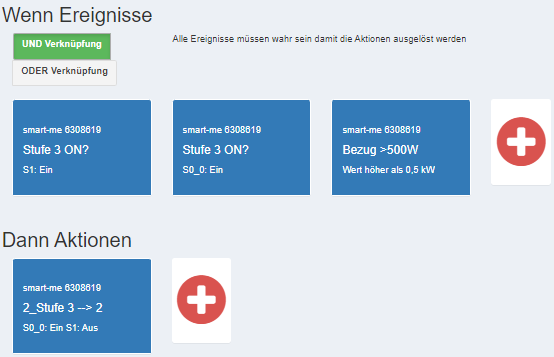
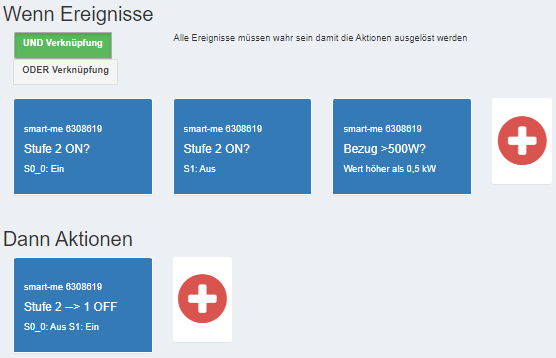
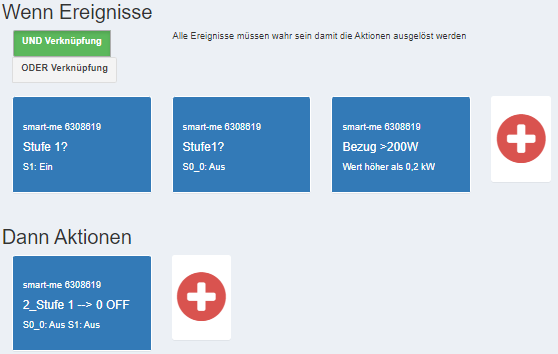
Level 3 -->2: consumption of >500W Level 2 -->1: consumption of >500W Level 1-->0: consumption of >200W
For each level, the if statement checks which level we are currently in and at the same time also checks the balance value. In the then action, we specify which level to switch to if all the if actions apply.
Important: Switching must not take place immediately and should be set to approx. 5 minutes for each level using the measured value minimum time.


Action 1: 1_Stufe 0 --> 1 ON
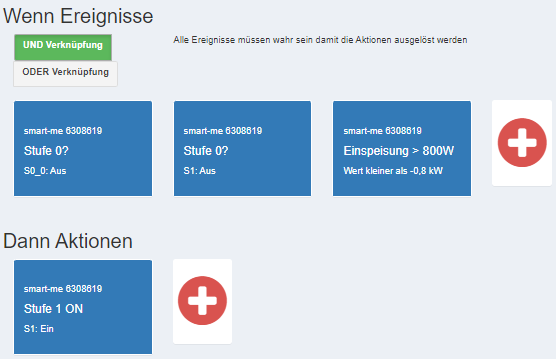
Action 2: 1_Stufe 1 --> 2 ON
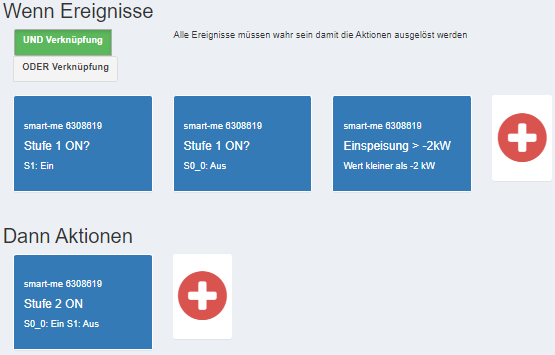
Action 3: 1_Stufe 2 --> 3 ON
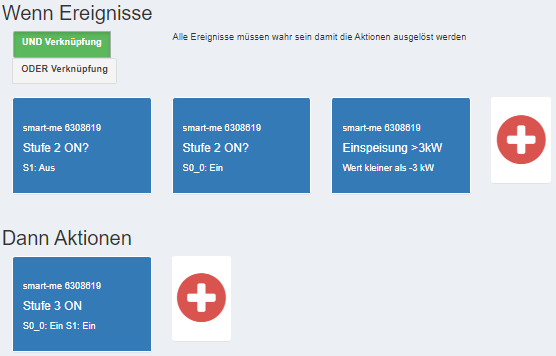
2_Stufe 3 --> 2 OFF
2_Stufe 2--> 1 OFF
2_Stufe 1 --> 0 OFF
ZEV heat pump with SG-Ready control based on the balance measured value
This configuration discusses the structural setup of a heat pump control depending on the balance measurement with the SG-Ready function.
Goal: The heat pump should be controllable in four power levels via two electrical contacts (meter Telstar S0_0 and S1).
SG-Ready or Smartgrid-Ready is a control logic that maps 4 states with two signals according to the following scheme:
Operating state 1: S0_0 OFF and S1 OFF --> heat pump OFF (0W) Operating state 2: S0_0 OFF and S1 ON --> heat pump power level 1 (800W) Operating state 3: S0_0 ON and S1 OFF --> heat pump power level 2 (2800W) Operating state 4: S0_0 ON and S1 ON --> heat pump power level 3 (5800W)
To carry out such a configuration successfully, a so-called state machine is required. For 4 power levels, we therefore need one action each to switch from one level to the next and to return again.
Switching takes place between the power levels:
Level 0--> 1: surplus of >800W Level 1--> 2: surplus of >2000W Level 2--> 3: surplus of >3000W
Level 3 -->2: consumption of >500W Level 2 -->1: consumption of >500W Level 1-->0: consumption of >200W
For each level, the if statement checks which level we are currently in and at the same time also checks the balance value. In the then action, we then specify which level to switch to if all the if actions apply.
Important: Switching must not take place immediately and should be set to approx. 5 minutes for each level using the measured value minimum time.
Action 1: 1_Stufe 0 --> 1 ON
Action 2: 1_Stufe 1 --> 2 ON
Action 3: 1_Stufe 2 --> 3 ON
2_Stufe 3 --> 2 OFF
2_Stufe 2--> 1 OFF
2_Stufe 1 --> 0 OFF