Folder and Meter Configuration
Node functions

Add node:
Adds a node with a name and a freely selectable icon.
The name affects the order in which the node is displayed in the tree.
-
Sorted by numbers
-
Sorted alphabetically
Edit folder node
Allows changes to the node name, icon and parent folder.
Video guide: creating folders and assigning meters
Edit meter node
Name (Name): Set the name of the meter. Description (Beschreibung): Optionally add a description for the meter. Value correction (Wert Korrektur): Corrects the meter's measured value on the cloud side. (position calculations) Parent folder value correction (Überordner Wert Korrektur): Defines as a percentage how much of the measured value is to be summed up in the parent folder. Meter active (Zähler aktiv): Activate or deactivate a meter to save licences. Deactivated meters no longer show any data. You can find more information on deactivated meters in our FAQ under How do I deactivate my meter?
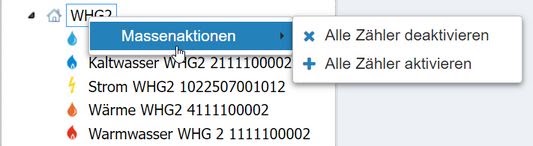
To activate or deactivate several meters at once, you can move them into a folder in the meter / folder configuration, right-click the folder and select a bulk action.
Delete node
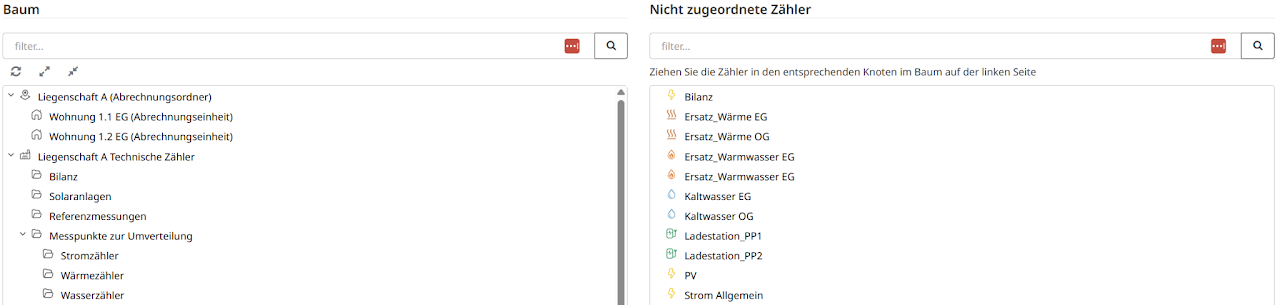
Deletes the selected node or meter point from the tree.
Meters then fall back to the left-hand side as unassigned meters.
Labelling meters
-
All meters must be installed in the corresponding account. Commissioning
-
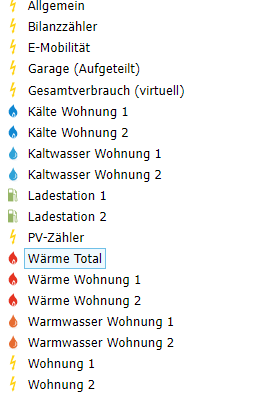
All meters must be labelled. Our suggestions for meter names
-
Usage unit meter number (e.g. APT 1 6352415)
-
Medium usage unit meter number (e.g. Heat APT 1)
-
Converting cold water meters to domestic hot water meters
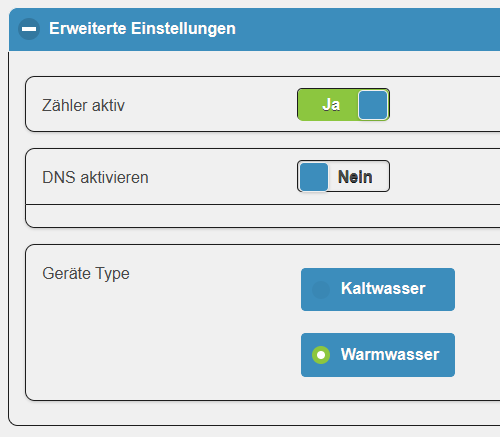
Some M-Bus meter manufacturers indicate during data transmission that the meter is a cold water meter, even though it should be a domestic hot water meter. In this case, the meter type must be overridden in smart-me.
-
Navigate to the Dashboard (Dashboard)
-
Select the meter in the Dashboard menu
-
Select the gear icon at the top right
-
Advanced settings (Erweiterte Einstellungen)
-
Change the device type (Geräte Type).
-
Save (Speichern)
Note: This adjustment provides support in smart-me Billing. The Auto Export for utilities is not changed by this.
Note: For technical reasons, this change is not possible with heat and cooling meters.
Folder structures and their influence on subsequent processes
The current system allows automated billing of electricity. For this to work, heat and water must be kept separate from electricity. Mixed systems are nevertheless possible to save effort with the tenant lists, but unfortunately the automation of billing is lost as a result.
For systems with several heating systems, however, separation into several properties is unavoidable.
Each individually created property can basically represent 1x electricity and 1x heat/water.
Basics of the tree structure and creating nodes
To prepare a building for billing, the appropriate properties and billing units must be created.
Basic folder structure of each individual property
The basic structure for each form of energy and each building consists of two basic nodes and multiple sub-nodes:
-
Property (later configuration of a billing)
-
-
Billing unit 1 of the property (apartment or rooms)
-
- Apartment meter (100% shares)
-
-
Billing unit 2 of the property (apartment or rooms)
-
...
-
-
-
Technical meters (collection of meter points that are not billed directly)
Any number of subfolders may be created here for structuring.
-
-
-
Balance meter
-
Solar system meter
-
Common area meters that are distributed as a percentage across billing units
-
Heat meters that are distributed as a percentage across billing units
-
Water meters that are distributed as a percentage across billing units
-
-
-
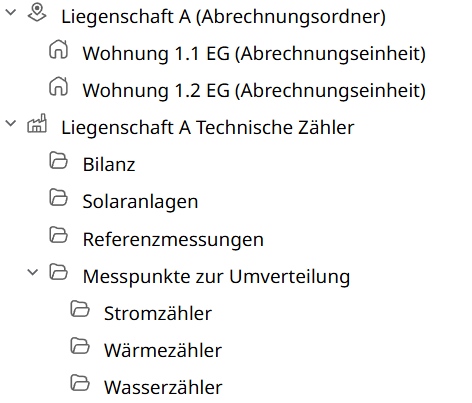
Create the structure for your project
Based on your project, now choose which guide at the end of the page you want to follow.
CSV upload of folder structures
Automatically creating folders with CSV files
Automatically creating folders with CSV files
smart-me offers the option of automating the creation of folders, assignments and renaming of meters using a CSV file. This function requires a smart-me Professional subscription.
CSV files contain tabular data stored in text form. They can be edited with a text editor (e.g. notepad++).
Caution: existing folders are deleted when this function is used. This means that all functions used with these folders will no longer work (e.g. if/then actions, smart-me billing configurations, etc.).

A configuration CSV file contains the following columns (do not change the order):
wiki 2.0 tables
The separators ";" and "//" must not be used in names. They are reserved for separating columns and folders in paths.
If the 4 columns "MeterPointId", "ExportFormat", "UploadType" and "ExportInterval" are present, the meter is additionally registered for the Auto Export.
An example configuration without Auto Export:
MeterSerialNumber;MeterName;FolderPath
102177;Büro 100;Wohnung 1. Stock Links // Büro
636731327420929937;Wohnzimmer 101;Wohnung 1. Stock Links // Wohnzimmer
101163;Schlafzimmer 102;Wohnung 1. Stock Links // Schlafzimmer
An example configuration with Auto Export:
MeterSerialNumber;MeterName;FolderPath;MeterPointId;ExportFormat;UploadType;ExportInterval
102177;Büro 100;Wohnung 1. Stock Links // Büro;CH100;CSV_1;FTP_2;Weekly
636731327420929937;Wohnzimmer 101;Wohnung 1. Stock Links // Wohnzimmer;CH101;CSV_1;FTP_2;Daily
101163;Schlafzimmer 102;Wohnung 1. Stock Links // Schlafzimmer;CH102;CSV_1;FTP_2;Monthly
Editing CSV files in Excel
Excel also supports editing CSV files. There are two points to bear in mind:
-
You must prevent Excel from rounding the meter serial number or displaying it in exponential form (e.g. by having Excel treat numbers as text.)
-
The CSV file must use the UTF-8 character set. Excel does not display umlauts correctly. In a text editor (e.g. notepad++), however, these characters are displayed correctly.
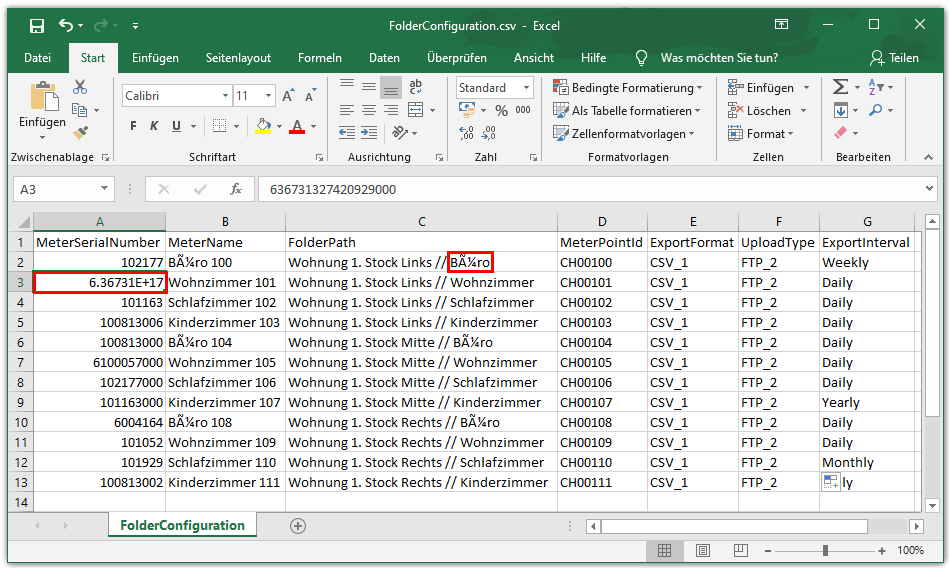
The recommended workflow is as follows:
-
Log in to the smart-me website.
-
Click Configuration (Konfiguration) at the top right
-
Click Meter / Folder Configuration (Zähler / Ordner Konfiguration)
-
Click Node configuration via CSV (Knoten Konfiguration über CSV)
-
Click Download node configuration (Download Knoten Konfiguration) to download the current configuration as a CSV file
-
Edit the configuration
-
Check the configuration in a text editor that supports the UTF-8 character set to make sure that meter serial numbers and names are displayed correctly
-
Click Browse (Durchsuchen) and select the edited CSV file
-
Click Upload node configuration (Upload Knoten Konfiguration) to apply the configuration Caution: the resulting changes cannot be undone