kerlink Wirnet iFemtocell-evolution
Integration guide
Activating Private Network mode
-
Connect the device to your laptop via USB-C
-
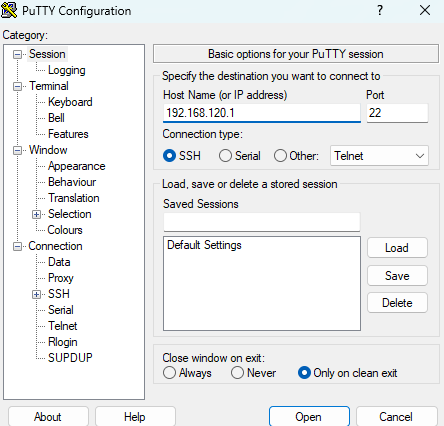
Use PuTTY (SSH) to open the following IP address: 192.168.120.1.
-
Log in with
user: root
PW: pdmk-*Serial* (e.g. EUI = 7076FFyyzz06001E, then the serial = 06001E)
-
Run the following command:
klk_apps_config --activate-cpf --lns-server lora-gateway.smart-me.com --lns-dport 1700 --lns-uport 1700
Note that Ins is the lowercase form of LNS!

Opening the remote web tool
-
Connect the device to Ethernet, Wi-Fi or 4G as described in the instructions
-
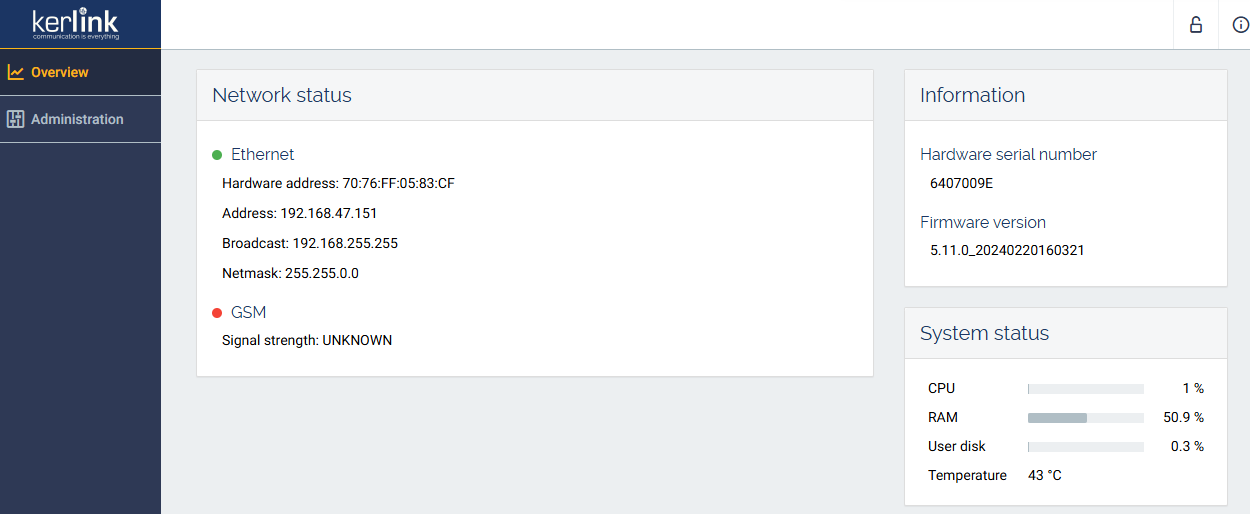
Open the browser on your laptop and enter the following URL: http://klk-fevo-<Serial>/
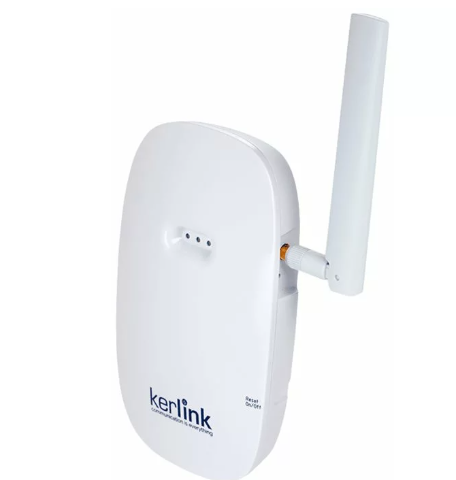
<Serial> is a placeholder for the last digits of the device EUI, which can be found on the device:
E.g. EUI = 7076FFyyzz060001, then the serial = 060001
-
Log in Default user: admin Default password: pwd4admin
-
Select "Administration"
-
Set the correct time zone for your location