Firmware Update
Performing a firmware update
smart-me products receive improvements and new features throughout their product life cycle. You can install these updates yourself.
ⓘ Note: Apply a firmware update mainly when you have noticed faulty behaviour or want to use a new feature that the previous firmware did not support. Update products with fast-changing features regularly, for example the Pico charging station.
Procedure
1. Select the device to update:
"Update" or "Update Communication"
-
Update: firmware of the device
-
Update Communication: update of the communication module
Note: To run several updates at the same time, right-click each link and open it in a new tab.
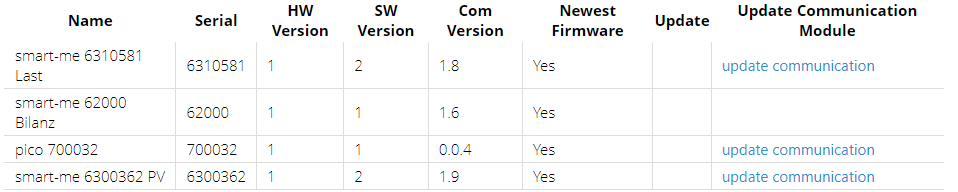
2. Select "Update firmware" (Firmware aktualisieren)
Time until the update starts:
-
For Telstar (CT) and Pico, it can take up to 5 minutes.
-
For the M-Bus gateway, it depends on the upload interval.

3. Wait until the update is complete and confirm with "OK"
ⓘ Note: Once the update has started (> 1%), you can close the browser.
Time until the update is complete:
-
For Telstar (CT), about 5 minutes.
-
For Pico, it can take up to one day. See below for how to speed up the firmware update.
-
For the M-Bus gateway, it depends on the upload interval.


Speeding up the firmware update
The update normally continues without active monitoring and without an open browser.
If you actively monitor the update, you can speed it up as follows:
-
Select the meter or the Pico in a second browser tab.
-
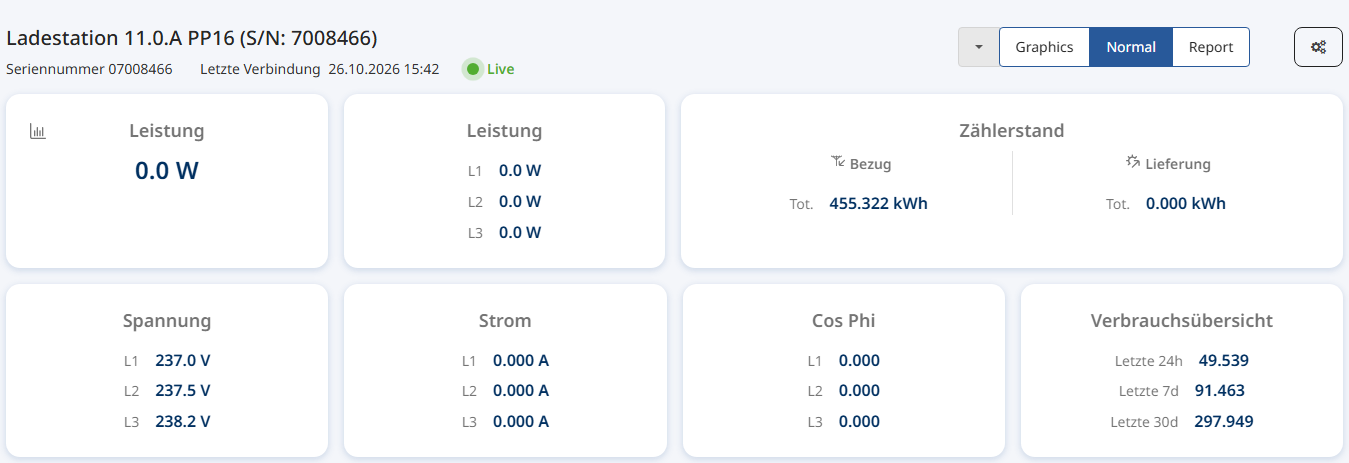
Select the normal view.
-
Keep the browser tab open and active. The meter or the Pico then communicates more often with the smart-me cloud, so more data packets can be exchanged and the update finishes faster.
-
You can see whether communication is active by watching the voltage. It always fluctuates slightly, so it is easy to see whether the device is now sending data every 1-2 seconds.