Meter Transactions
Beta: Meter transactions (Zähler Transaktionen) are time-limited and digitally signed consumption records of measured values that can be billed on their own. An ideal use case is charging sessions for e-mobility.
You can find more information on public key signing here.
Application for EV charging stations
The smart-me meter (version 2) is installed in the charging station. The digital output of the meter is connected directly to the charging controller and can thus start and stop charging. The meter's display and the calibration mark are visible on the front of the charging station.
Charging session sequence

1. The charging session is started (e.g. via an app). The command "Start Transaction" is sent to the meter. It starts a new transaction and activates the charging station. The display switches from the rolling display of the meter readings to the display of the transaction. The consumption of the transaction starts at 0 kWh and counts up according to the consumption.

2. The user sees the current charging power and the energy already consumed on the display.

3. The charging session is ended (e.g. via the app). The command "End Transaction" is sent to the meter. It ends the transaction, signs it and sends the transaction data and the digital signature to the cloud. For 5min, the display shows the user that the charging session has ended.
Verifying a charging session afterwards
The customer can check the billed amount of energy at any time after the charging session. To do this, they enter the corresponding transaction in the app or on the web and verify it with the meter's public key. The public keys of all smart-me meters are publicly available in the smart-me Cloud (or via API).
The transaction data can be verified online with the signature and the public key.
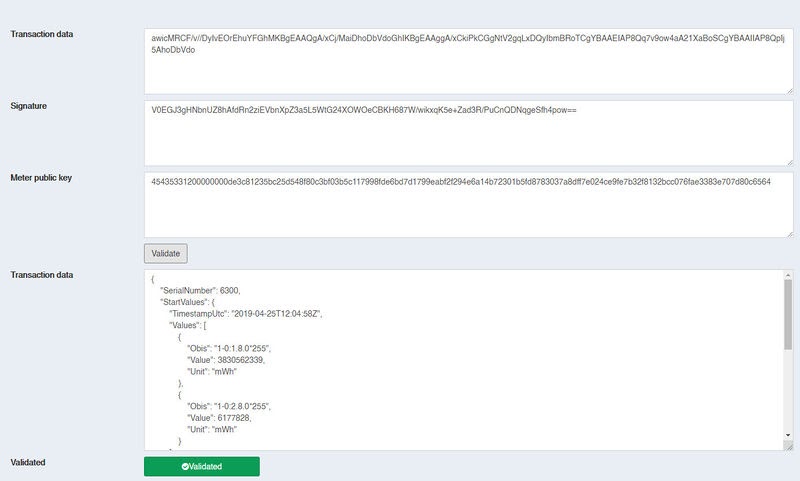
Validating Pico meter data with transparency software
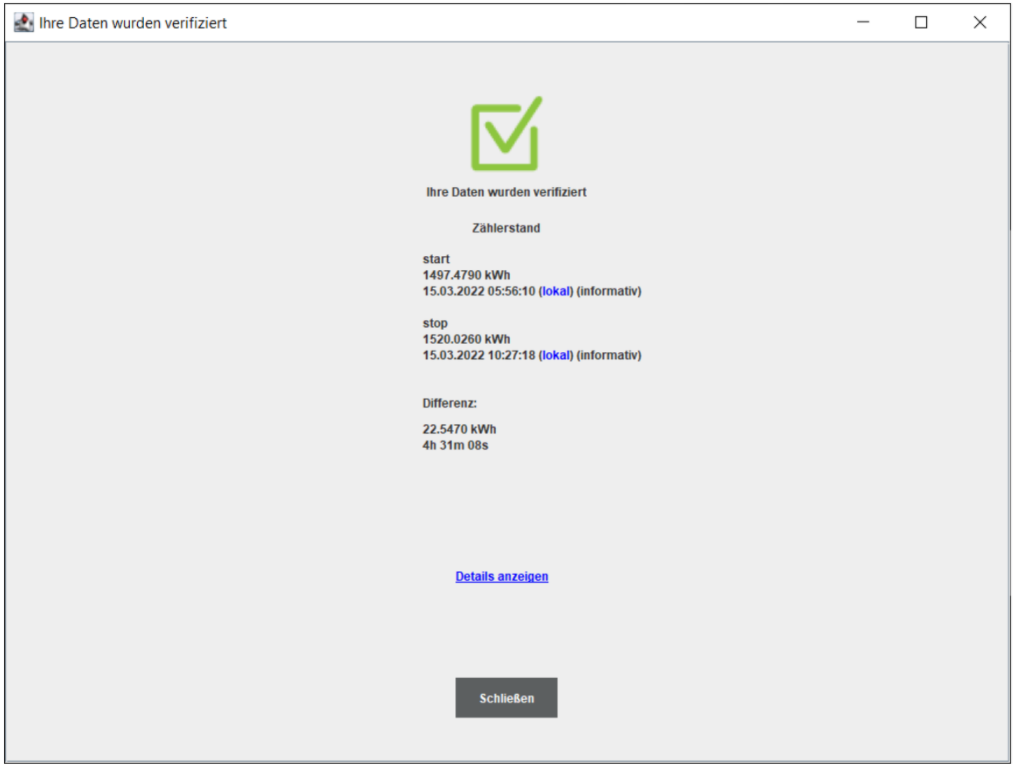
With the help of transparency software, you can verify digital signatures.
Depending on its technical design, a charging station creates digitally signed measured values in connection with a charging session that you carry out at this charging station. These digital signatures allow you to verify the measured values at a later time, so that you can make sure that nobody has manipulated the values during transmission up to your invoice.
Use of the transparency software is free of charge for consumers, mobility providers and charging station operators.
Download transparency software: https://www.safe-ev.de/de/transparenzsoftware.php
Validating meter readings
The signed meter reading series can be retrieved in the smart-me Cloud as follows:
1. Log in at www.smart-me.com
2. Select the desired meter or charging station
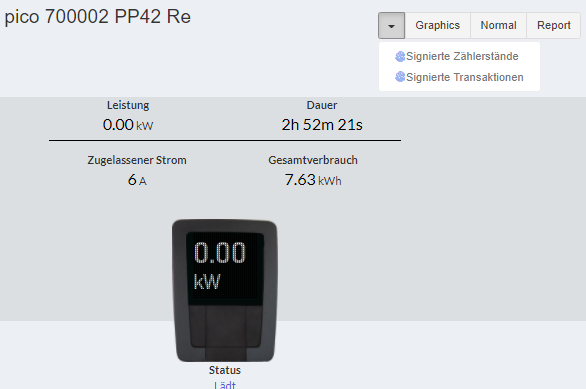
3. In the menu at the top right, click the arrow and select "Signed meter readings" ("Signierte Zählerstände")
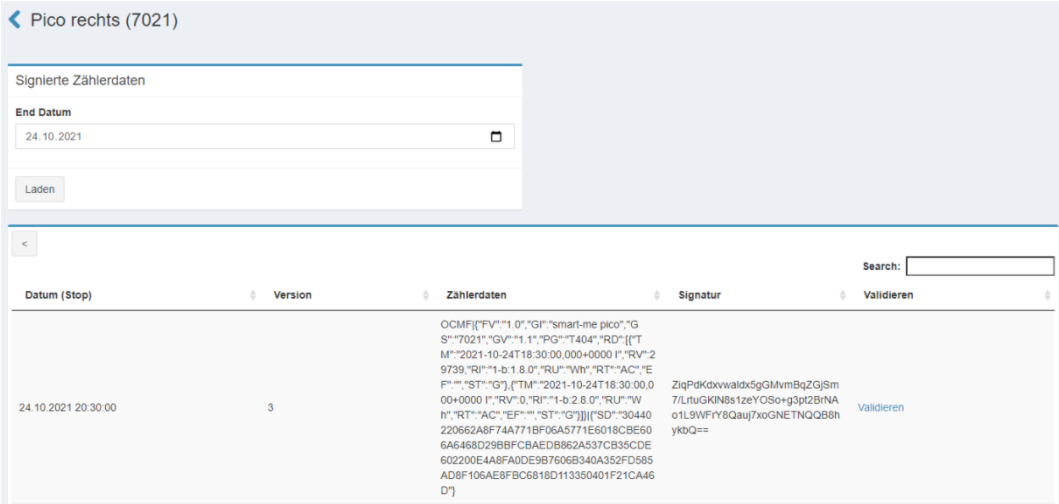
4. The signatures (OCMF format) are displayed under "Meter data" ("Zählerdaten").
The OCMF message can be validated with the transparency software:
-
Meter reading 1: active energy consumption (1-b:1.8.0)
-
Meter reading 2: active energy delivery (1-b:1.8.0)
Validating transactions
The signed transactions can be retrieved in the smart-me Cloud as follows: 5. Log in at www.smart-me.com 6. Select the desired meter or charging station 7. In the menu at the top right, click the arrow and select "Signed transactions" ("Signierte Transaktionen") 8. The signatures (OCMF format) are displayed under "Meter data" ("Zählerdaten"):
The OCMF message can be validated with the transparency software.
Activating the MID mode of the Pico (display of relevant data)
If the user wants to trigger the display of the MID-relevant data (meter readings, versions, checksums), two options are available:
-
Start or restart of the station
-
Via the brightness sensor
Displaying relevant data via the brightness sensor
Using a flashlight, the user can "flash in" the following code:
Dark - Light - Dark - Light - Dark
Each state must last between 1 and 5 seconds.